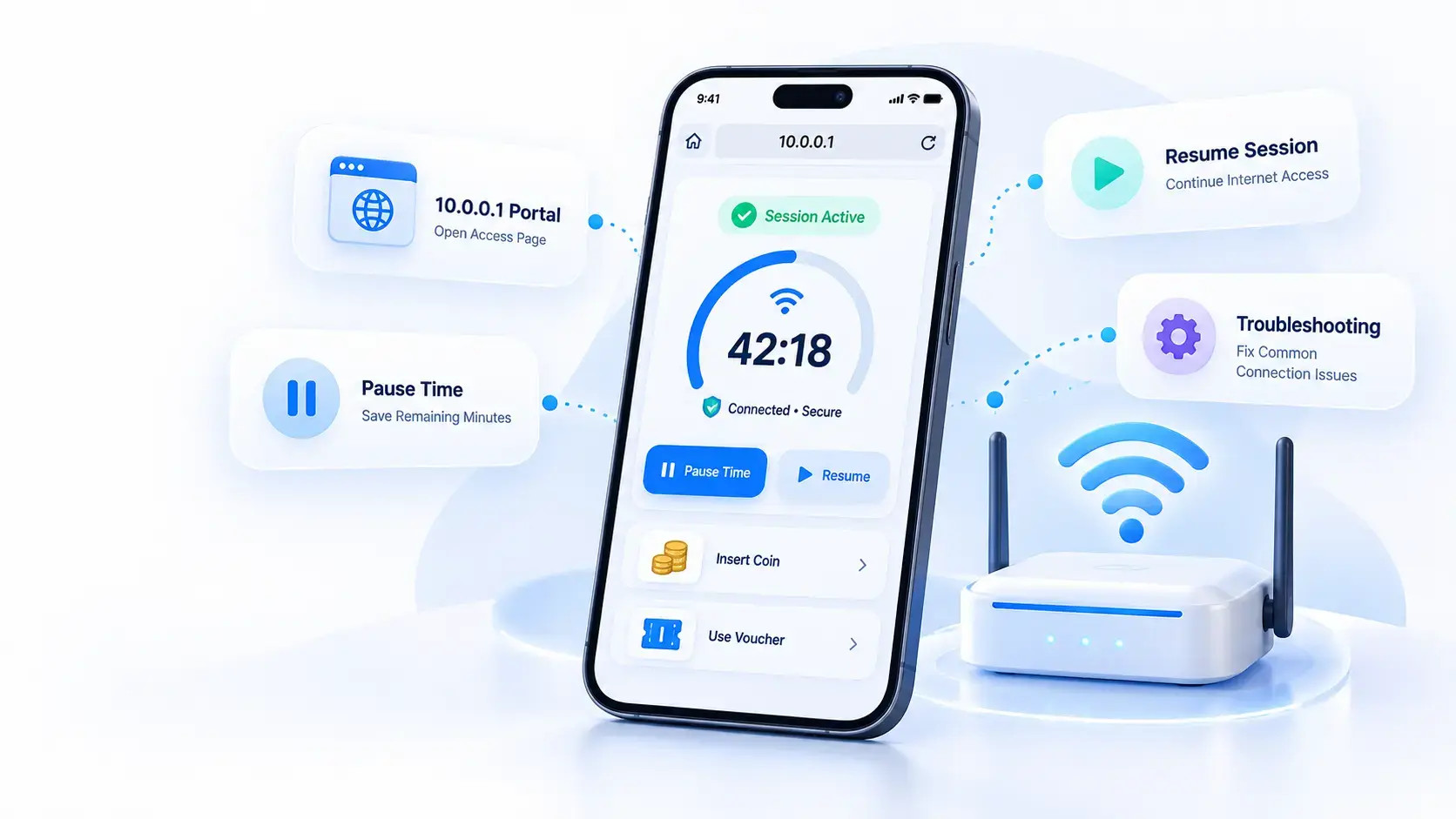
Piso WiFi is the best way to get affordable internet access when you do not have a regular home connection. You add coins or use a voucher, connect your phone to the network, and receive internet time. The main problem starts when you need to leave for a while but your paid minutes are still running.
While using the Piso WiFi pause time, I found it useful for saving unused minutes when I needed to stop browsing. Knowing the correct portal steps makes it easier to manage your paid session. I will share what I followed to open 10.0.0.1, pause and resume the timer, and fix common portal problems.
Understand the network, prepare your device, and connect to the local portal.
What Is Piso WiFi?
Piso WiFi is a public WiFi network typically operated via vendo machine. These machines are available in small stores, dorms, barangays, transport areas and other places where people require low-cost internet. You pay for a small amount of internet time, rather than paying a monthly broadband bill.
The important part is that your payment is connected to a timer. When you pay for one hour, the system may start counting down as soon as you log in to the system. If there is no Piso WiFi pause time, you may be charged for your paid minutes if you leave the network for a short period of time.
Why Piso WiFi Pause Time Is Useful
Piso WiFi pause time helps you save your remaining internet minutes when you are not using the connection. It also gives you better control over your paid session.
Example: If you purchase 60 minutes and only use 20 minutes before you depart, then you still have 40 minutes remaining. If Piso WiFi pause time is available, you can save that extra time. It can be saved by pausing the session.
How Piso WiFi Pause Time Works
- Buy Time60 minutes
- Use Time20 minutes
- Pause40 minutes remain
- Time SavedReturn later
- ResumeContinue browsing
What Do You Need Before Using Piso WiFi?
You do not need any specific software to use a normal Piso WiFi connection. Instead, your phone, tablet, or computer only needs Wi-Fi support and a working browser. You also need access to the network and the local portal before using Piso WiFi pause time. Before starting, check the following:
Important: If you are using a phone, you can close the vendo machine, which can be helpful. A weak Wi-Fi signal can cause the portal to load slowly or disconnect during the session.
How to Connect to the Piso WiFi Network?
A proper connection is important for using Piso WiFi pause time. If this feature does not work, it may be due to the network connection. If your device is not connected to the active Wi-Fi network, the local portal may not work. Here are the steps to follow to connect to the Piso wifi network accurately:
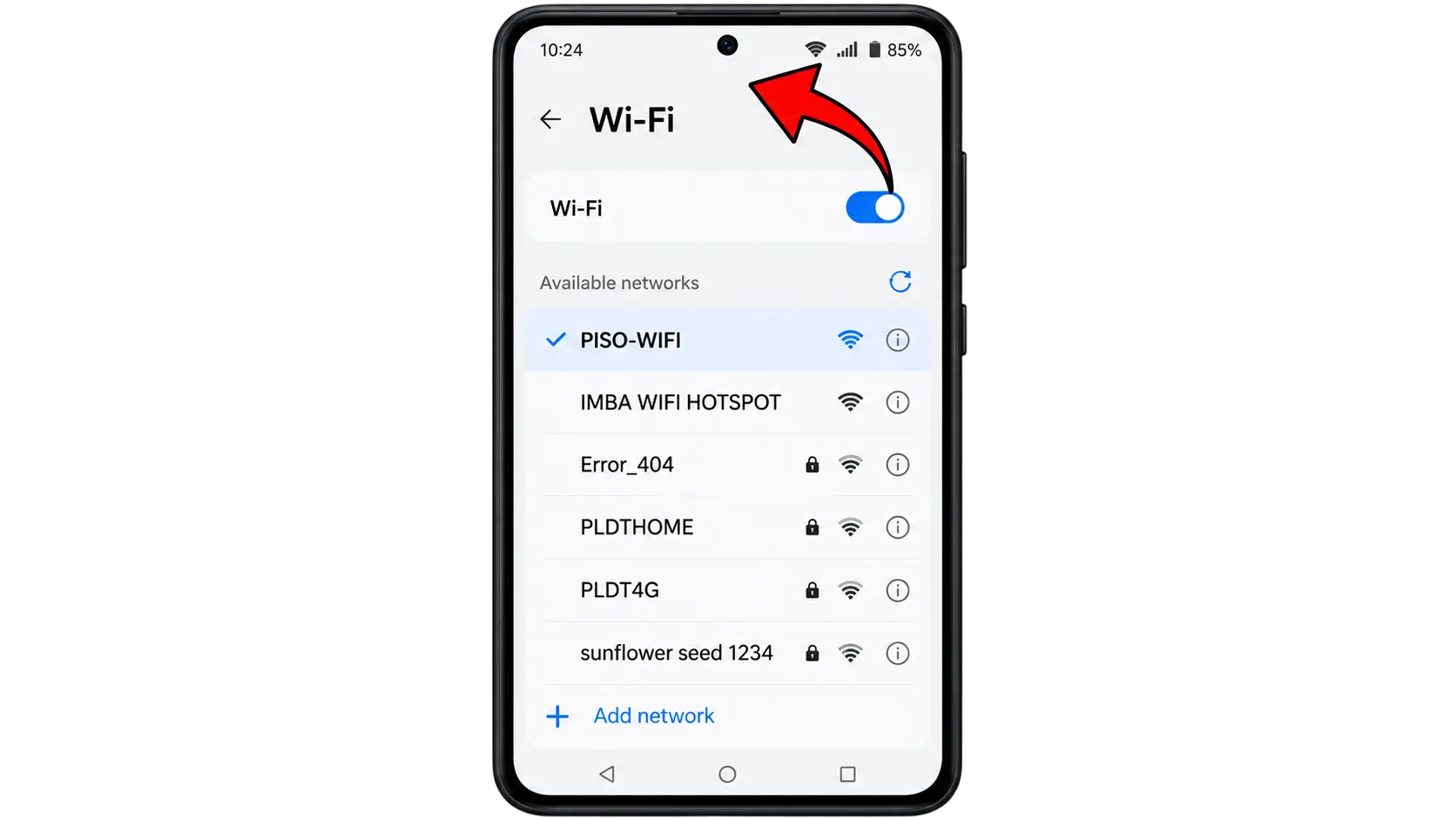
Open Wi-Fi Settings
Open the Wi-Fi settings on your Android phone, iPhone, tablet, or computer. Search for the Piso WiFi network name shown near the machine.
Select the Network
Tap the correct network name and wait until your device shows that it is connected. You can see a message saying there is no internet. This can be normal before you complete the Piso WiFi login process.
Open Your Browser
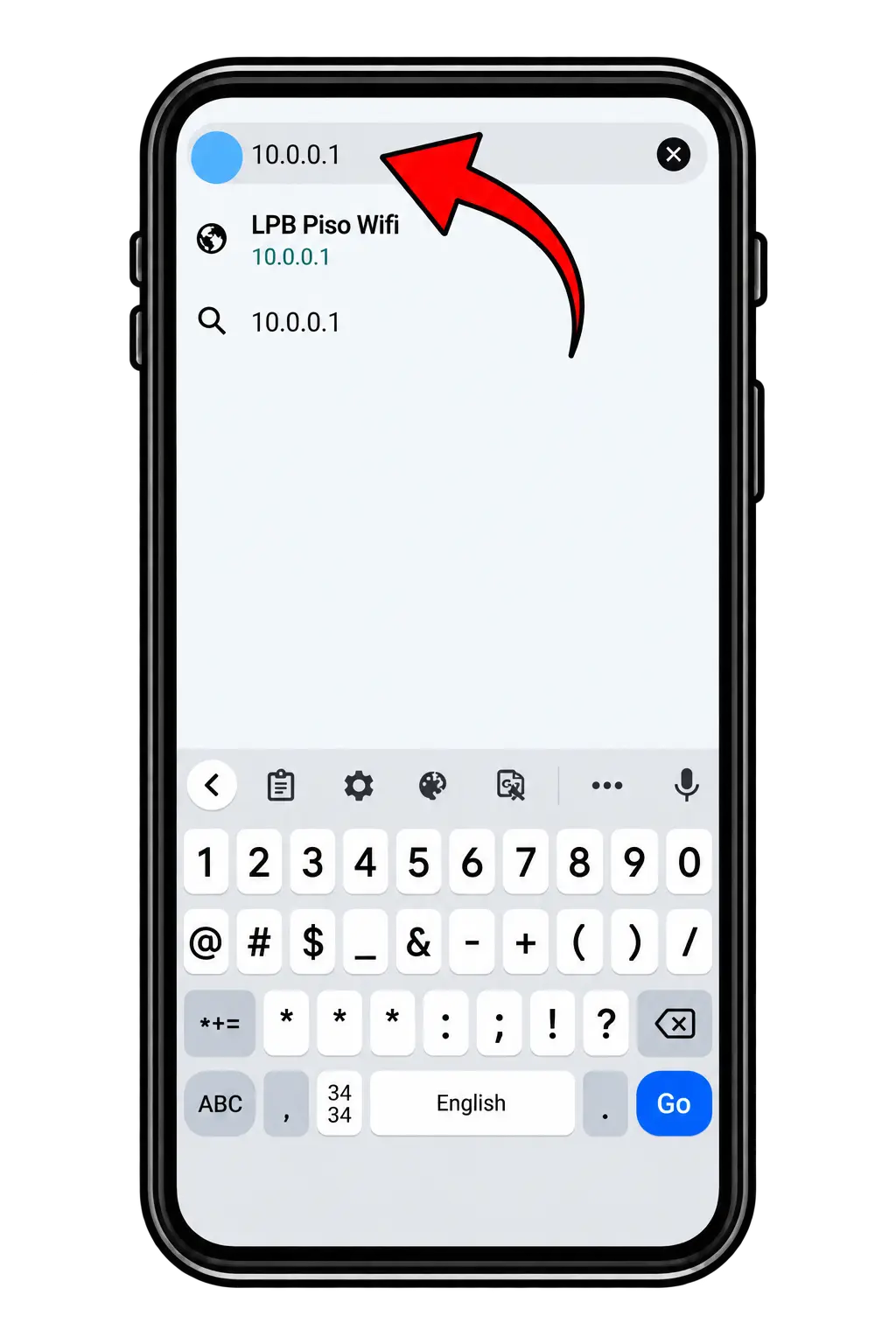
Open Chrome, Safari, or another browser. Do not search for the IP address on Google. Instead, type the local address directly into the browser's address bar.
Open the Portal
Enter 10.0.0.1, then press Enter or Go. If the machine uses this address, the Piso WiFi portal should appear.
Open the local portal, save your remaining time, and continue the same session later.
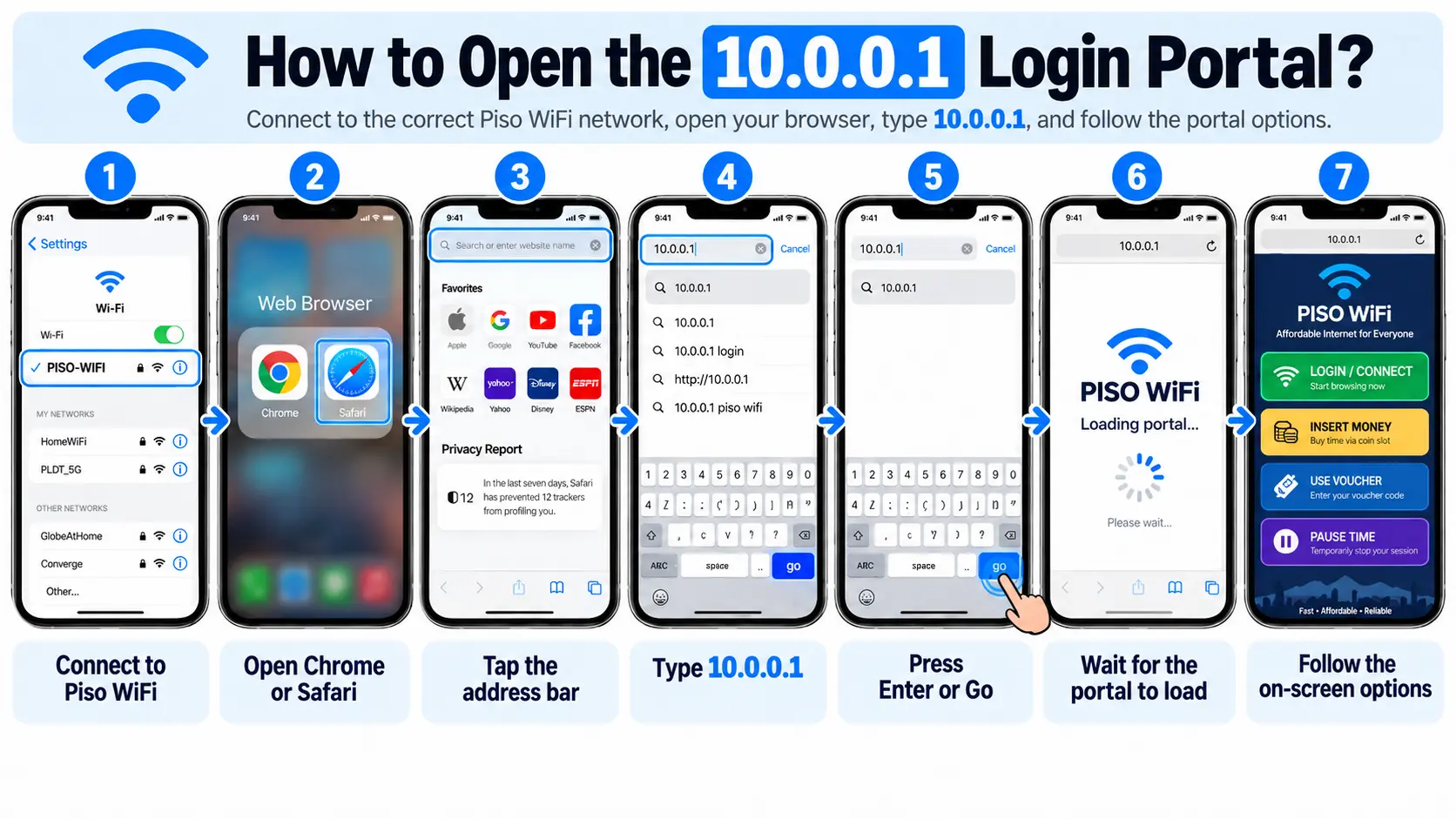
How to Open the 10.0.0.1 Login Portal?
The 10.0.0.1 address is used as a local gateway on some Piso WiFi setups. Your device needs to be connected to the correct local network before you can access the 10.0 0.1 pause time through the portal. Here are the steps to follow to open your portal:
- 01Connect to Piso WiFi.
- 02Open Chrome or Safari.
- 03Tap the address bar.
- 04Type 10.0.0.1.
- 05Press Enter or Go.
- 06Wait for the portal to load.
- 07Follow the on-screen options.
How to Pause Your Piso WiFi Timer?
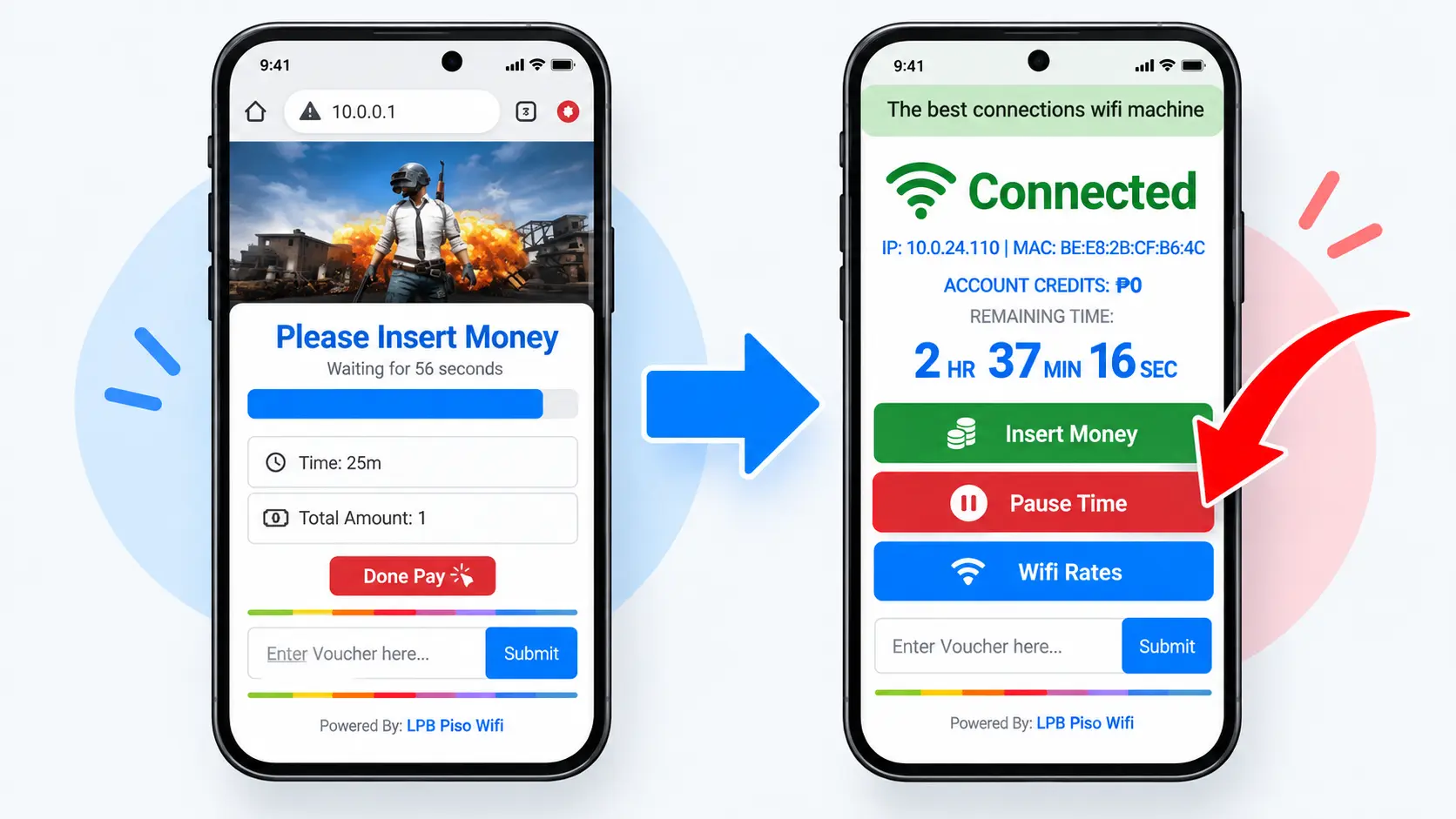
If your machine supports 10.0.0.1 Piso WiFi pause time, the pause control should appear somewhere on the user portal. Its exact location can change depending on the platform and interface. Here is how you can pause your Piso WiFi timer:
Open the Portal
Go back to the Piso WiFi portal while your session is active.
Check Your Remaining Time
Search for the timer or remaining balance. This helps you confirm that the correct session is active.
Find Pause
Search for the Pause button on the session page. If you cannot find it, the feature may not be enabled.
Tap Pause
Select Pause and wait for confirmation.
Leave the Network
Once the system confirms the pause, you can disconnect from Wi-Fi.
Connection: Active
How to Know If Piso WiFi Pause Time Worked?
Tap Pause and do not disconnect right away. A successful pause time WiFi request should display a change on the session page, such as a pause status, a stopped timer, a confirmation message or a Resume option. This exact sign varies with the 10.0.0.1 Piso WiFi pause time machine.
Note the time that is left before you exit the network. When you return, open the same session and check the saved time. If the timer has continued running or your session has ended, talk to the machine owner before paying again.
Resuming Your Saved Internet Time
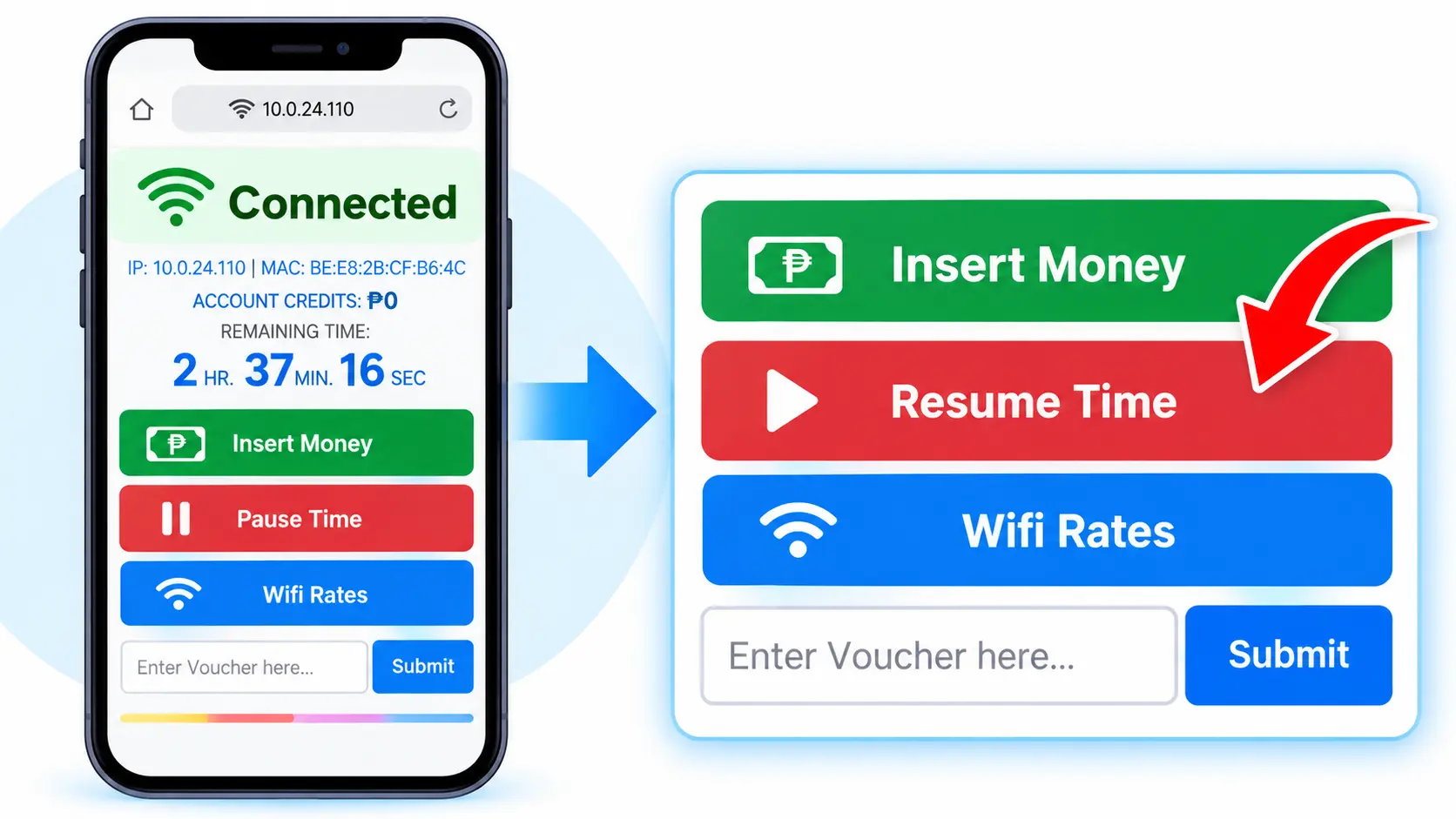
After using Piso WiFi pause time, connect back to the same network again. Reopen the portal and search for the "Continue previous session" option. Some setups require the same device because the session may be linked to it.
- 01Turn on Wi-Fi.
- 02Use the same Piso WiFi network.
- 03Open Chrome or Safari.
- 04Visit 10.0.0.1.
- 05Check for your existing session.
- 06If available, click Resume.
- 07Check to make sure that your free time is displayed.
- 08Continue browsing.
Follow the portal path for Android, iPhone, Chrome, and common mobile browser behavior.
Android Setup for Piso WiFi Pause Time
Android phones can connect to Piso WiFi easily, but mobile data can sometimes interfere with the local portal. For this reason, try turning off your mobile data first.
- WiFi
- Piso WiFi
- Chrome
- 10.0.0.1
- Pause
- 01Go to Settings on your Android mobile device and choose Wi-Fi.
- 02Select the Piso WiFi network and wait for your device to connect.
- 03Turn off mobile data temporarily to avoid connection issues with the local portal.
- 04Connect to the Piso WiFi network and open Chrome.
- 05Enter 10.0.0.1 in the browser address bar to log in to the portal.
- 06Open up your active session and see if you have any internet time left.
- 07Tap Pause if the option is available on the session page.
- 08Check to see if your session is paused before disconnecting from Wi-Fi.
Tip: When you want to continue, reconnect to the network and open the portal again. If your session is still valid, the Resume option should appear according to the machine's setup.
How to Pause Piso WiFi on iPhone?
On an iPhone, you can stop your Piso WiFi session from the local portal app in Safari. Before starting, make sure your iPhone is connected to the correct Piso WiFi network. Follow these steps to pause your remaining internet time.
- WiFi
- Piso WiFi
- Safari
- 10.0.0.1
- Pause
- 01Tap the Settings app on your iPhone and select Wi-Fi settings.
- 02Press the WiFi button and ensure WiFi is on.
- 03Connect to the right Piso WiFi network and wait for your iPhone to connect.
- 04Turn off mobile data temporarily if it prevents the local portal from loading.
- 05Once you have logged in to the Piso WiFi network, open Safari.
- 06Enter 10.0.0.1 into the Safari browser's address bar and open the portal.
- 07Log on to your current session and review how much Internet time you have left.
- 08Tap the Pause option if it is available on the session page.
- 09When you see the confirmation that your session is paused, you can disconnect from Wi-Fi.
How to Open the Piso WiFi Portal in Chrome?
Chrome gives you an easy way to access the portal and manage Piso WiFi pause time during an active session. In most cases, the portal appears after you connect. But you can also open it manually by entering 10.0.0.1 in the address bar.
If the Portal Does Not Open
If Chrome stays on a blank page or fails to reach the portal, a few changes on your phone may help:
Chrome Portal Problems on Samsung Phones
Samsung phones can use network or data-saving features that affect local portal access. Make sure your phone remains connected to the Piso WiFi network while opening Chrome. If Data Saver or a similar restriction is active, turn it off temporarily and try loading 10.0.0.1 again. You can enable the setting again after accessing the portal.
Review the available ways to start a session and confirm that paid time was added.
How to Start Your Piso WiFi Session?
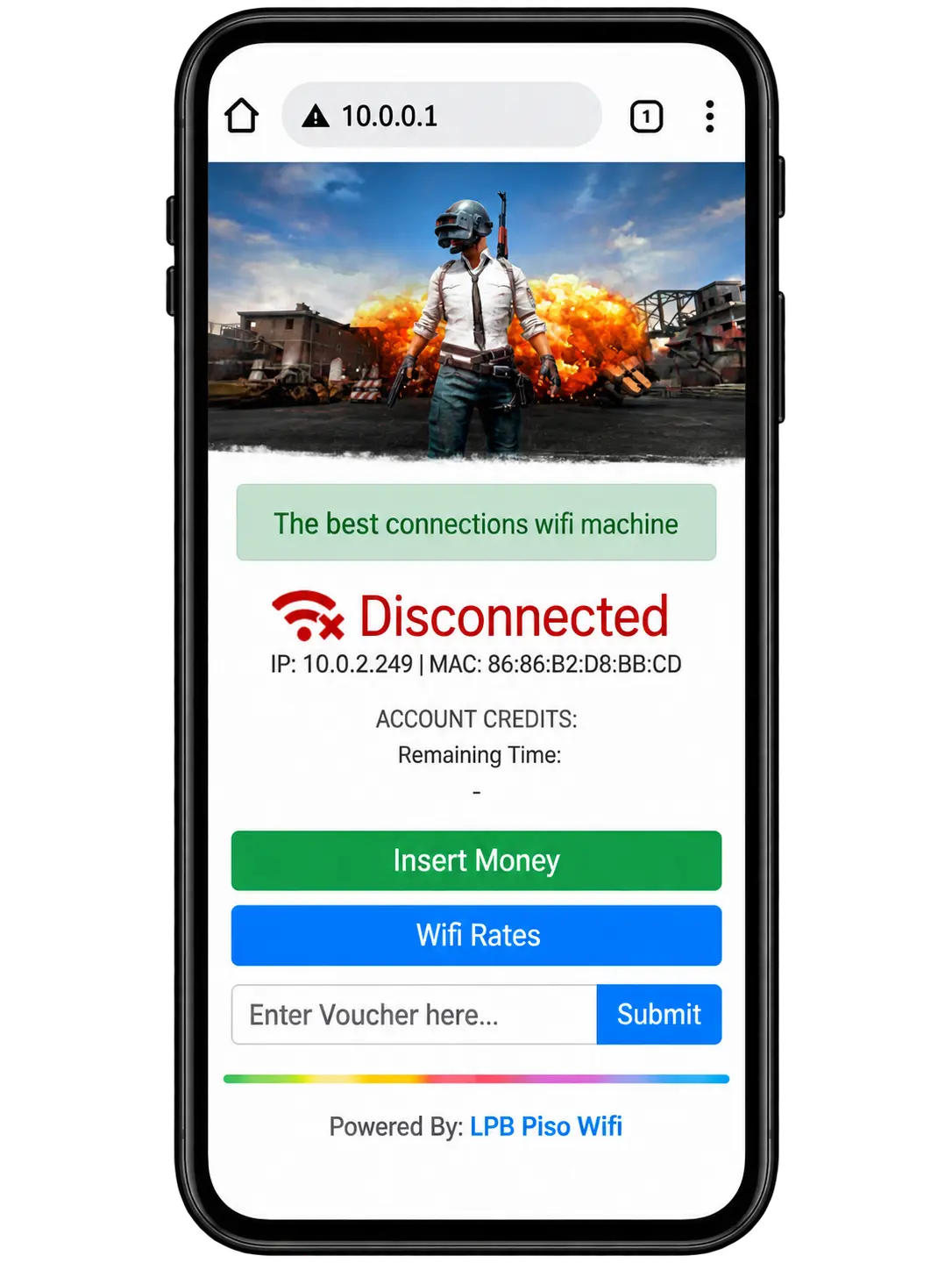
Once the portal opens, choose the payment option available on the machine. The method can vary by setup, but you can use coins, a Piso WiFi voucher code, or a supported digital payment. After the payment is accepted, check that your internet time appears on the portal before you start browsing.
Pay with Coins
Insert the amount you want to use into the vendo machine. Once the payment is detected, the 10.0.0.1 Piso WiFi Vendo Pause system should add internet time based on the rates set by the operator.
Use a Voucher Code
If you have a voucher, then enter the code in the dedicated field and submit it. You should check the code again if the portal shows an error or does not add your internet time.
Pay with GCash or Maya
Some Piso WiFi machines allow digital payments through services such as GCash or Maya. If this option is available, then follow the payment instructions shown on the portal. Wait for the transaction to be confirmed.
After your session becomes active, check the timer before leaving the portal. This allows you to confirm how much paid time is available and whether the session started correctly.
Configure customer session controls, payment options, pause rules, and timer settings.
How Can Vendo Owners Enable Pause Time?
If you operate a vendo machine, Piso WiFi pause time usually needs to be enabled in the machine settings. Customers normally cannot turn on a disabled feature from the user portal. Here are the steps to follow for Vendo owner Pause Time setup:
Connect to the Admin Network
Use a device or network that can access your machine's admin interface.
Open the Admin Portal
Enter the local admin address used by your setup. Some configurations use 10.0.0.1/admin.
Sign In
Enter your administrator username and password to access the 10.0.0.1 admin pause time settings.
Open Portal Settings
Find the section that controls the customer portal and session options.
Find Pause Time
Look under coin mode, voucher mode, or session settings. Its location can vary by platform.
Enable Pause Time
Turn on the pause option and set any available limits.
Save Your Changes
Save the new settings before leaving the admin panel.
Test the Feature
Start a small test session and check whether the Pause button appears.
Important Piso WiFi Portal Settings
Piso WiFi pause time is not the only setting that affects customer sessions. Payment methods, session rules, and timer rates should also be checked.
Portal Access
Make sure the correct payment options are enabled. Customers should also be able to view their remaining time and available session options.
Session Rules
Check timer limits, pause rules, and voucher settings. These settings should match the service and rates you offer.
Timer Rates
Timer rates decide how much internet time a customer receives for a certain payment. You can offer different time packages for different coin amounts.
Note: Rates can vary depending on your location and business setup. Make them clear so customers know how much time they will receive before paying.
Why Do Payment Options Disappear?
A missing voucher or coin option does not always mean the machine is broken. It can disappear because the owner disabled that payment method or changed the portal settings. For example, the voucher box may disappear when voucher access is turned off.
Coin options can also change based on the software and current machine configuration. If you are a customer, ask the operator before making another payment. Machine owners should check the portal settings and restart the related service if needed.
How to Check If Pause Time Is Enabled?
You can quickly check whether Piso WiFi Pause Time is active by opening a valid session. The following signs can appear on the user portal or admin panel:
Understand pause duration, repeat pauses, remaining time, and session limitations.
How Long Can Piso WiFi Stay Paused?
Each machine has its own Piso WiFi pause time duration. Limit is dependent on the software, machine configuration and settings chosen by the owner. If there is a pause limit or countdown on your portal, adhere to it. Don't expect your saved session to keep playing forever.
You can't use the pause time from another Piso WiFi machine. If you are working on a different machine, check the information displayed on that machine, as it may be different.
Can You Pause Piso WiFi More Than Once?
How often you can use Piso WiFi pause time depends on the machine settings. Some systems permit several pauses. Others may have a restriction on the number of pauses allowed during a session. If the Pause button reappears after resuming, then you can use it once more. If it goes away, the machine could have a pause limit or another session rule.
How to Check Your Remaining Piso WiFi Time?
Your remaining internet time shows how many paid minutes are left before you pause the Piso WiFi session or continue browsing. You can usually find this information directly on your active session page.
How to Avoid Losing Paid Piso WiFi Time?
Small mistakes can waste your remaining minutes. The most common one is assuming that leaving the Wi-Fi network works like Piso WiFi pause time and stops the timer. Here are useful tips to follow:
What Pause Time Can't Do for You?
Piso WiFi pause time is a helpful tool but not a time saver. It doesn't add to internet time. When you pay for an hour, you don't normally have to pay for two hours when you pause. It also won't automatically switch your session to another phone. If your session is running on one device, changing devices could prevent it from functioning.
Most importantly, customers can't make a disabled pause feature work. If the machine owner has not made it available, it is necessary to ask for an alternative payment method or seek assistance from the machine operator.
What to Expect When Your Piso WiFi Time Runs Out?
When your paid time reaches zero, your internet access normally stops. The portal shows that the session has expired and gives you an option to start a new session. If you still have a valid unused voucher, its behaviour depends on the voucher rules configured by the operator. A used or expired session cannot normally be restored simply by refreshing the page.
Piso WiFi Voucher vs Coin Payment
Both methods work well, but I prefer voucher payment because it feels easier and more convenient. Here is how vouchers and coins differ for Piso WiFi users.
| Feature | Coin Payment | Voucher |
|---|---|---|
| Payment | Coins | Code |
| Easy for quick use | Yes | Yes |
| Physical machine needed | Usually | Not always |
| Code required | No | Yes |
| Pause support | Depends on setup | Depends on setup |
| Owner controls | Timer and rates | Codes and rules |
Important: The better option depends on how the machine is configured. If you use Piso WiFi regularly, vouchers can be convenient when the operator provides them.
Protect your session, admin access, and sensitive accounts on a shared network.
Tips to Protect Your Piso WiFi Connection
While using Piso WiFi, I followed a few basic precautions to keep my connection and personal data safer. You can use the same tips when accessing the 10.0.0.1 portal.
Set up a Strong Admin Password
If you are the owner of the machine, change the default Piso WiFi admin password. Use a robust password to prevent others from being able to access your settings.
Use a Private Device for Admin Login
Avoid using a shared device to log in to the Piso WiFi admin panel. You should change passwords, rates or network settings using your own phone or computer.
Keep Private Accounts Off Public Wi-Fi
Do not use banking information or other confidential information on a shared Piso WiFi network. When accessing important accounts, use a trusted private connection.
Log Out After Changing Settings
Never give out your Piso WiFi login information or session. Maintaining this information confidential can help safeguard your active session.
Is Piso WiFi Safe for Banking and Payments?
Piso WiFi is a shared or public network, so be careful when using sensitive accounts. Do not enter banking information on a network or connection you don't trust or a connection that acts differently.
Many people use public Wi-Fi for non-critical tasks such as browsing, social media, watching videos, etc. However, it is important to use HTTPS websites, update your phone and not accept any suspicious certificates or browser alerts.
Note: A working Piso WiFi portal does not mean every website or connection is safe. Keep sensitive payments and important account logins on a connection you trust.
Common Mistakes New Piso WiFi Users Make
New users usually make mistakes that cause unnecessary problems. The most common is searching for 10.0.0.1 instead of entering it directly in the browser. Here are some mistakes you must avoid:
Compare common platforms, portal addresses, gateways, and user or administrator access.
LPB vs AdoPiSoft vs PisoFi
Different Piso WiFi systems can provide similar basic functions, but their interfaces and configuration options are different.
| Platform | Main use | Pause support | Owner controls | Customization |
|---|---|---|---|---|
| LPB Piso WiFi | Vendo internet | Depends on setup | Yes | Varies |
| AdoPiSoft | Hotspot management | Depends on configuration | Yes | High |
| PisoFi | Piso WiFi management | Depends on setup | Yes | Varies |
| JuanFi | Open-source/custom | Depends on setup | Yes | High |
| 1Click Piso WiFi | Vendo management | Depends on version | Yes | Varies |
JuanFi: The Open-Source Alternative
JuanFi is an open-source platform used for Piso WiFi hotspot and vendo systems. It is a flexible choice for owners who want more control over how their Piso WiFi system works. It can be customised, but the exact user experience depends on how the owner has configured the system.
Pause behaviour can be different between installations. One machine provides a pause button, while another setup uses different session rules. If you operate a JuanFi-based machine, check the configuration instead of assuming that every JuanFi installation works in the same way.
1Click Piso WiFi and 10.0.0.0.1 Confusion
Usually, people type 10.0.0.0.1 when talking about Piso WiFi. This is often a typing mistake when they mean 10.0.0.1. The extra zero can be confusing because IP addresses follow a specific format. If your machine uses 10.0.0.1, enter that address exactly.
Common Piso WiFi IP Address Variants
Not every network uses the same local gateway. Depending on the router or Piso WiFi configuration, you can see addresses such as:
You should not randomly try addresses until one works. Instead, check your device's gateway information to find the correct local address.
How to Find Your Portal Address on Any Device?
If 10.0.0.1 does not open, your device can often show the gateway address. You can use this address to access the Piso WiFi portal instead.
On Android
Open Wi-Fi settings and tap the connected network. Depending on your Android version, check details such as Gateway, Router, or Network Details. The address listed as the gateway can help you identify the local portal address.
On iPhone
Go to Settings > Wi-Fi, then tap the information icon next to the connected network. Find the Router field. That address is the local gateway used by your current connection.
On Windows
Open Command Prompt and run ipconfig. Find Default Gateway under the active network connection.
On macOS
Open network settings and view the details of your active Wi-Fi connection. Find the router or gateway address.
Piso WiFi Login vs Admin Login
Piso WiFi provides different access areas for customers and machine owners. Knowing the difference helps you use the correct portal without changing important system settings.
Piso WiFi User Login
The Piso WiFi user portal is designed for customers who want to manage their internet session. Here, you can check your remaining time, enter a voucher, view payment options, and use Pause or Resume when available.
Piso WiFi Admin Login
The Piso WiFi admin portal is for vendo owners who manage the machine and network. It includes controls for timer rates, active sessions, payment methods, Pause Time, and other system settings.
Start here when the portal, Pause button, saved session, or connection is not working.
Fixing Common Piso WiFi Pause Time Problems
While using Piso WiFi Pause Time, I faced a few problems with the portal, Pause button, and saved session. Based on these issues, here are the simple fixes that helped me and help you too.
Check these in order
- 1WiFi
- 2Mobile Data
- 3VPN
- 4Browser
- 5Gateway
- 6Operator
Pause button is missing
If the Pause button is not visible, check whether the machine supports the feature. It can also be disabled by the owner. Try reconnecting and reopening the portal. If the option still does not appear, ask the operator.
The session will not resume
Reconnect to the same Piso WiFi network and open the portal. If possible, use the same device that started the session. If the pause period has expired, the system may no longer allow the session to resume.
10.0.0.1 will not load
First, check your Wi-Fi connection. Then turn off mobile data and VPN, reconnect to Wi-Fi, and try again. If the address still fails, check your device's gateway address.
Wi-Fi disconnects on screen lock
Some phones change Wi-Fi behaviour when the screen turns off. Check your device's battery and Wi-Fi settings. If the connection keeps dropping, keep the device active until you complete the pause process.
The machine restarted
A power interruption can affect active sessions depending on the platform and configuration. If your session disappears after a restart, contact the machine owner and provide details about the payment and remaining time.
Pause works but Resume does not
Check whether you are using the original device and network. Also check whether the pause limit has expired.
How to Improve Piso WiFi Connection Speed?
A slow connection is not always caused by your phone. The number of users connected to the machine, internet bandwidth, signal strength, and network configuration can all affect speed. Move closer to the access point if the signal is weak. Close apps that are using large amounts of data in the background.
Compare access options, payment methods, strengths, and limitations.
How Piso WiFi Compares to Home Broadband & Mobile Data
Piso WiFi pause time is useful because it allows you to pay for smaller amounts of access. This can be helpful if you only need internet for a short time. Home broadband is better for regular daily use because you have a private connection and do not need to pay for each session. Here is a quick comparison:
| Option | Best for | Main advantage |
|---|---|---|
| Piso WiFi | Short sessions | Low upfront cost |
| Home broadband | Daily home use | Private regular connection |
| Mobile data | Use while traveling | Portability |
| Public Wi-Fi | Occasional access | Convenient |
Pros and Cons
Pros
Cons
Quick answers to the most common Piso WiFi pause time and portal questions.
Frequently Asked Questions
Can you pause time on Chrome Piso WiFi?
Yes, if the machine supports Pause Time. You can use Chrome Piso WiFi Pause Time by opening the local portal in Chrome, but the actual pause feature is controlled by the Piso WiFi system.
What is the Piso WiFi IP address?
Many Piso WiFi setups use 10.0.0.1, but the exact gateway can vary. If it does not work, check your device's network gateway.
Why is 10.0.0.1 not opening?
Make sure you are connected to the correct Piso WiFi network. Turn off mobile data and VPN, reconnect to Wi-Fi, and enter the address directly in the browser.
Does turning off Wi-Fi pause Piso WiFi?
Not necessarily. Disconnecting from Wi-Fi is different from using the Pause button. Your timer continues depending on the system.
Can I pause Piso WiFi without a Pause button?
You normally cannot activate a disabled customer feature yourself. Ask the machine owner whether manual pause or another session option is available.
Can I resume Piso WiFi on another phone?
It depends on the machine configuration. Some sessions can be connected to the original device, so using another phone may not restore the session.
Can I pause Piso WiFi more than once?
It depends on the platform and owner settings. Some machines allow repeated pauses, while others can limit them.
Does turning off Wi-Fi stop the 10.0 0.0 1 Piso WiFi timer?
No, your paid time keeps running unless you use the Pause option. Always pause your session before disconnecting from Wi-Fi.
Conclusion
Piso WiFi offers an affordable way to access the internet through short paid sessions. Piso WiFi pause time helps you save unused minutes when you need to disconnect for a while. If you face portal issues, check your connection, gateway address, VPN, and mobile data. Proper setup can keep Piso WiFi simple and reliable.