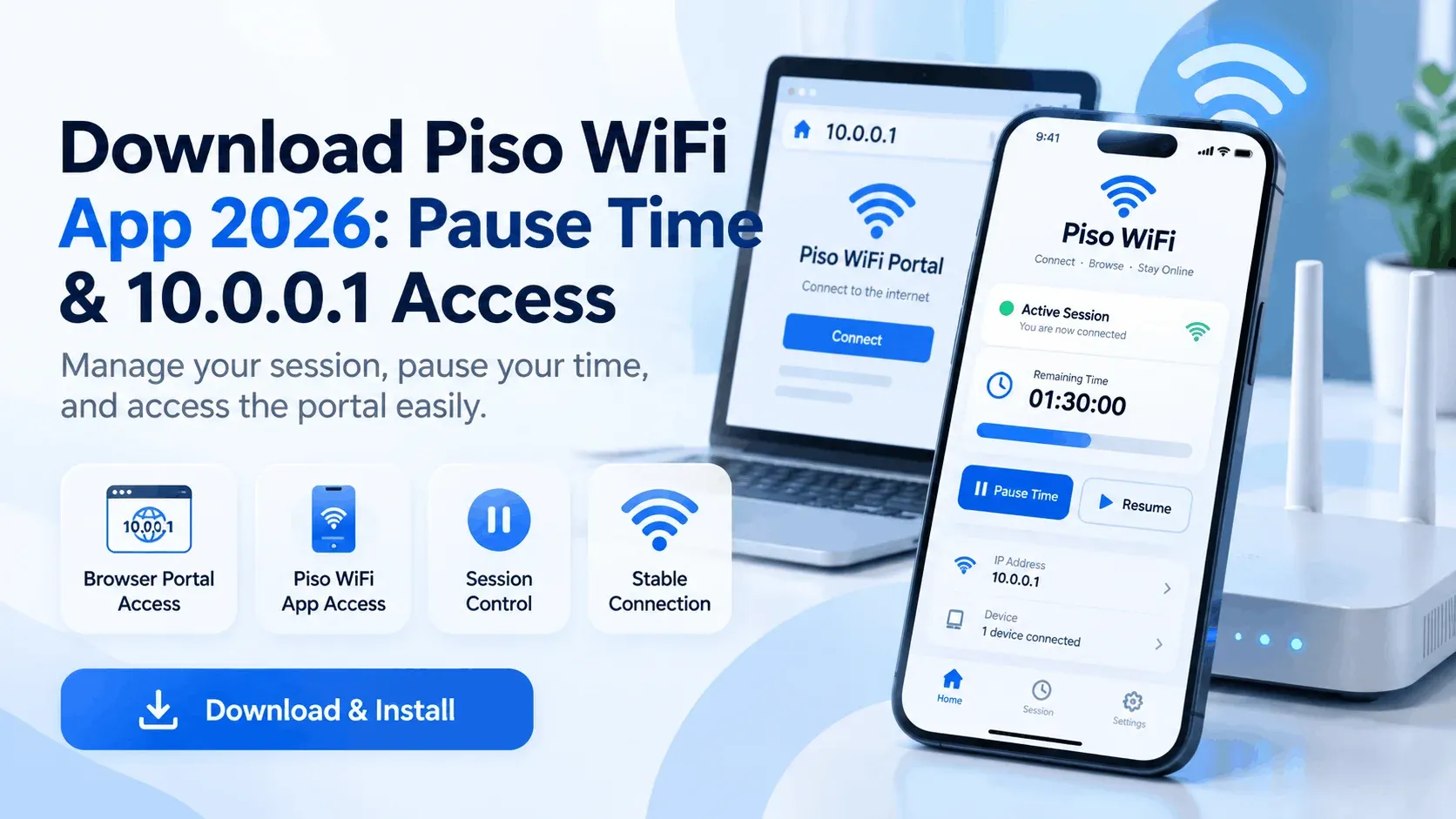
Paid internet time can keep running even when you need to stop browsing for a while. This becomes frustrating when you have unused minutes but do not know how to pause or save them. The Piso WiFi app can make it easier to check and manage your active session.
However, you may not always need to install an app on your phone. Many Piso WiFi machines use the 10.0.0.1 portal in a browser for Pause Time, Resume, and session details. We will guide you on how to access the portal, download a supported app, use Pause Time, and fix common connection problems.
What Is the Piso WiFi App?
A Piso WiFi app is a mobile tool or local web interface used with a Piso WiFi vendo system. It shows your remaining internet time and current session details. Some systems also let you pause or resume your connection. The available features depend on the software and settings chosen by the vendo owner.
In many cases, what users call a Piso WiFi Pause Time app is actually the customer portal at 10.0.0.1. It opens in your browser instead of being installed on your phone. The portal gives you the main controls for your paid internet session. It means that you don’t need a separate app.
Piso WiFi Pause Time App
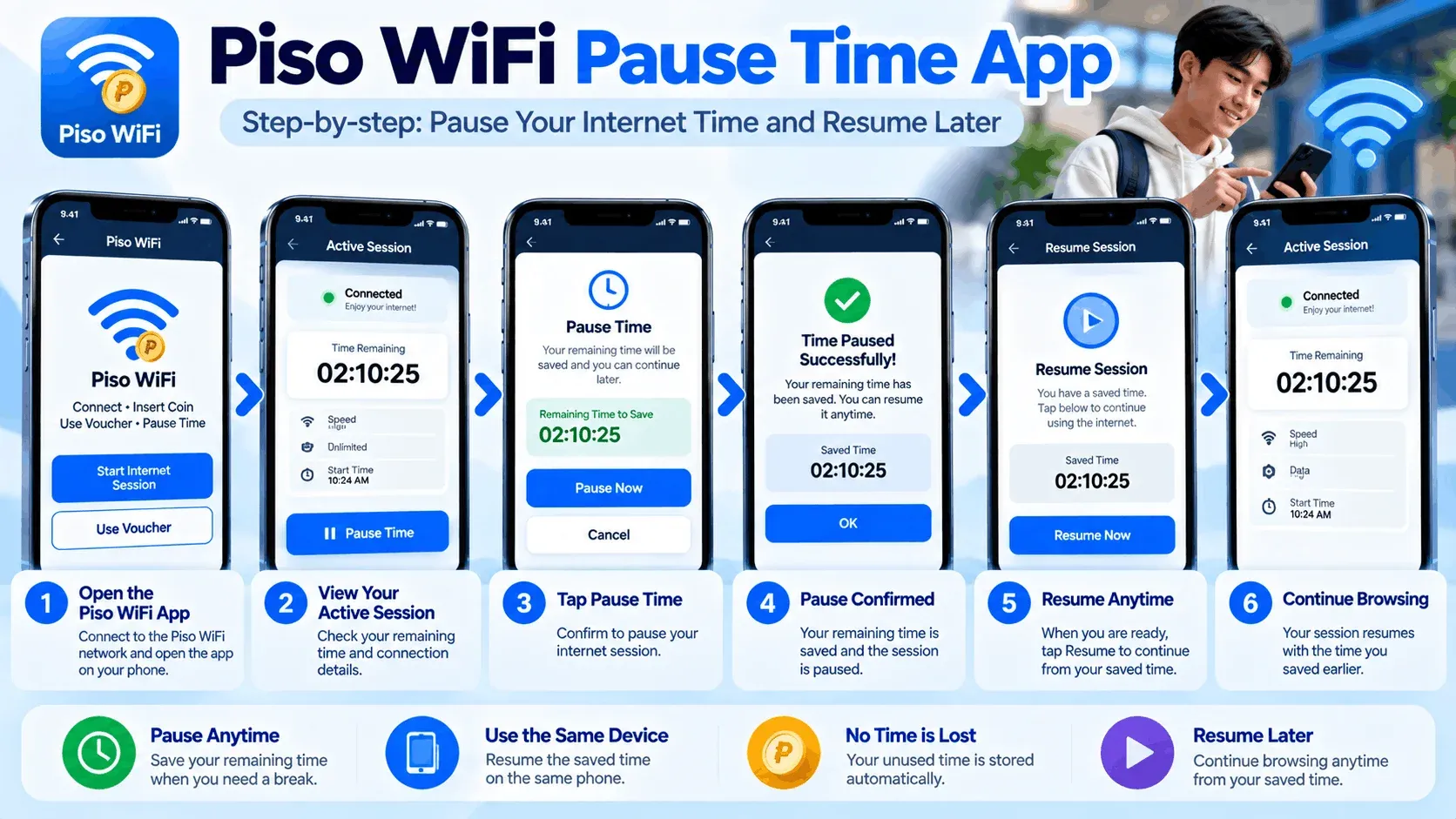
The Pause Time portal lets you check and manage your paid internet time.
- 1Connect your device to the correct Piso WiFi network.
- 2Open 10.0.0.1 in your browser.
- 3Check your active session and remaining time.
- 4Select Pause to stop your paid minutes.
- 5Wait for confirmation before disconnecting.
- 6Select Resume when you want to continue your session.
Piso WiFi App Features
A Piso WiFi app can be helpful in controlling your paid internet session. It has the following features that make it stand out:
You may take a break from your active session if needed. Pause Time is supported and can be activated; the remaining minutes will no longer count down. Later, you can choose Resume to resume your session. It allows you to take advantage of the time you have when it is time to reconnect.
The app can display how much internet time is remaining. Remaining minutes can be viewed before pausing or exiting the network. This helps you to keep track of your paid Piso WiFi time. You can also see when you might need to increase your internet time.
Some Piso WiFi applications notify you of the current session. You can get a warning when you are running out of time. Depending on the app and your phone settings, you can be notified in a variety of ways. These reminders can help you remember to check your session before it's too late.
Pause Time may be limited by some machines when time is limited. The Pause button might be removed after you've reached the limit of sessions set by the owner. This setting can only be changed by the machine admin. This limit varies between the Piso WiFi machines.
Certain apps enable you to use the internet for a certain amount of time by using a voucher code. You type in a correct code and wait for the system to verify it. Voucher support and packages available vary based on the Piso WiFi setup. If you have a valid voucher, it can be used to increase your Internet time during your session.
You can determine if your session is active, paused, or completed. This is to ensure that a Pause or Resume request was successful. The information shown can vary between different Piso WiFi systems. The status check can also help you avoid making the wrong assumption that your session has been paused.
You can find out if your device is connected to the Piso WiFi network on some apps or portals. It can be helpful if the portal doesn't load or your session doesn't start. Some controls may not function if the WiFi signal is weak or disconnected. You can access the session page by reconnecting to the correct network.
Depending on the Piso WiFi system, there could be other methods to enable Internet time. This may be in the form of coins, vouchers or electronic payments depending on the machine. After the payment is successful, the system can add time to your session. The available payment methods are at the discretion of the vendor owner.
How to Access the 10.0.0.1 Pause Time Portal?
To access the portal, you don’t need to go to Google every time to find the local portal. Just following these steps can help you to access the Pause Time portal:
- 1Tap WiFi settings on your phone. Select the network name that is displayed on or around the vendo machine.
- 2Select Chrome, Safari or any other browser you have on your device. If this is the case, turn off mobile data for a while until the local connection is established.
- 3Enter 10.0.0.1 into the address bar. Do not use the Google search box.
- 4Wait for the customer portal to appear. You may see your remaining time or session on this screen.
- 5If available, click on Pause. Don't close your browser or disconnect from WiFi without confirmation.
Important: LPB users can check the complete LPB Piso WiFi Pause Time process for pausing and resuming paid minutes.
Piso WiFi Pause Time App Download
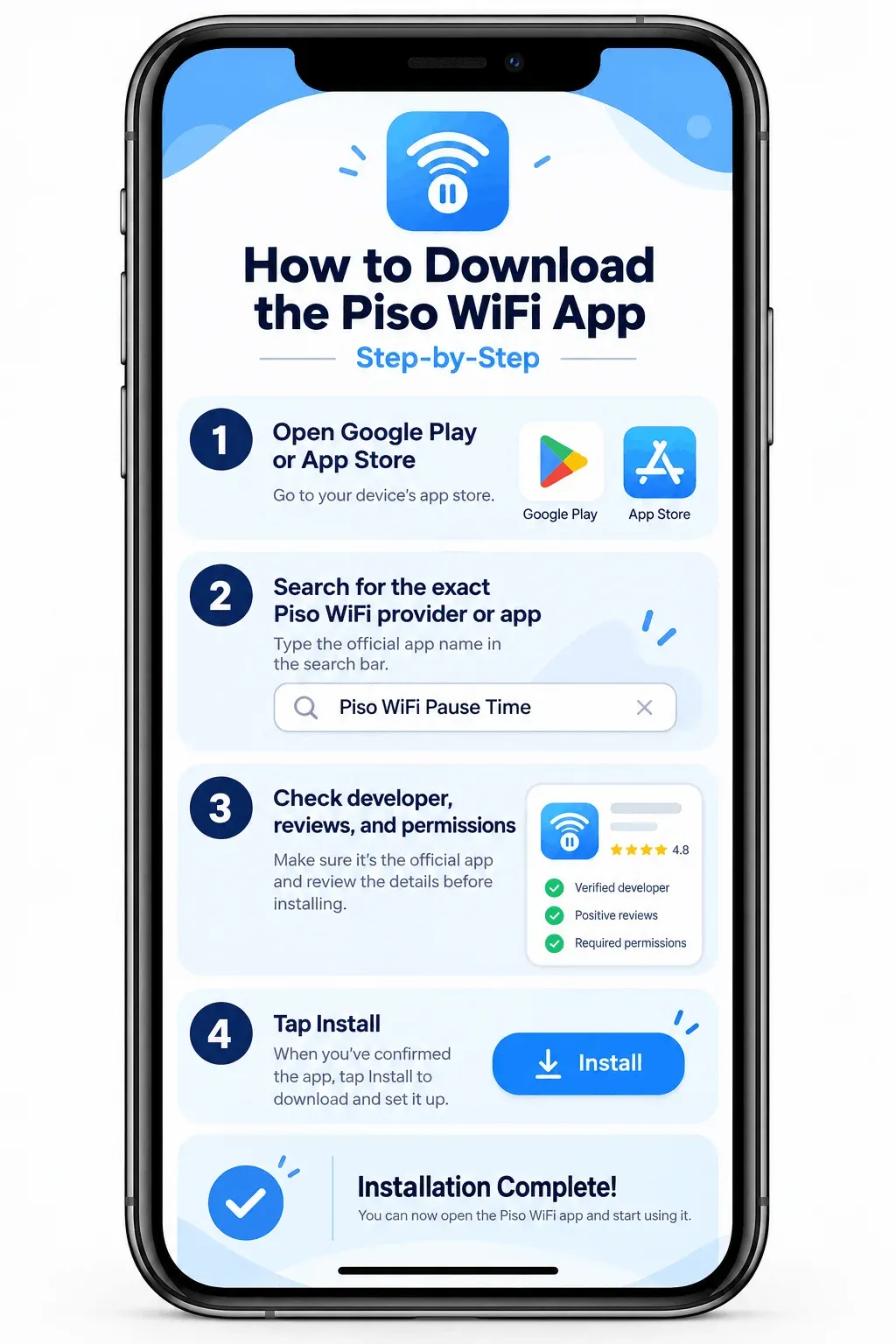
You see many results when searching for a piso wifi pause time app download. Here is how to download the Piso WiFi Pause Time app:
- 1Check the brand name shown on the Piso WiFi vendo.
- 2Search for official app or portal instructions.
- 3Open the Google Play Store or Apple App Store.
- 4Search for the exact provider or brand.
- 5Review the developer information.
- 6Read recent reviews and app details.
- 7Check requested permissions.
- 8Install only when the app matches your system.
Piso WiFi App on iPhone
Follow these steps to access and manage your Piso WiFi session on iPhone:
- 1Connect your iPhone to the Piso WiFi network.
- 2Open Safari on your phone.
- 3Enter 10.0.0.1 in the address bar.
- 4Wait for the customer portal to open.
- 5Select Pause or Resume when available.
Piso WiFi App or Portal Not Working
A small connection or browser issue can sometimes stop the portal from opening correctly. Here are some simple fixes you can try when the app or portal is not working:
Open your WiFi settings and check the network name. If several Piso WiFi machines are nearby, you may have joined the wrong one. Reconnect to the correct network and open the app again. If you use the browser portal, enter 10.0.0.1 after reconnecting.
Mobile data can sometimes affect access to a local network page. Your phone tries to use its cellular connection instead of communicating with the vendor router. Turn mobile data off temporarily and reopen the app or portal. You can switch it back on after troubleshooting.
A VPN sends traffic through another network path. This can prevent your phone from reaching a local Piso WiFi address. Turn the VPN off and try 10.0.0.1 again. If the page now opens, the VPN was likely interfering with local access.
A temporary app error can stop your session from appearing. Close the application completely and start it again. You do not need to reset your phone immediately. A simple app restart solves a temporary loading issue.
A supported mobile app needs permission to communicate with devices on the local network. Open your phone settings and check whether the required network-related permissions are enabled. Do not approve unrelated permissions without a clear reason. A customer WiFi app should only request access needed for its stated features.
If the app still does not work, open Chrome or Safari while connected to Piso WiFi. Enter 10.0.0.1 and check whether your session appears. If the browser works but the app does not, the problem is more likely related to the application. If neither works, the network or vendo machine needs attention.
10.0.0.1 Piso WiFi Login Page Fixes
The 10.0.0.1 Piso WiFi login page only works when the machine is configured to use that local address. Your phone also needs to be connected to the correct Piso WiFi network. Try these quick fixes:
Is the Piso WiFi App Safe?
Not every app you find online is worth trusting, especially when your personal data is involved. Download the Piso WiFi app from the official provider or a trusted app store, and check its permissions before installing. If an unknown app asks for your contacts, messages, photos, or other personal data, it is safer to leave it alone.
Do not assume the safety of an application only by its name or logo. A similar name does not prove that it belongs to the company running your local vendo machine. Before downloading, you must check:
Piso WiFi App vs Browser Portal
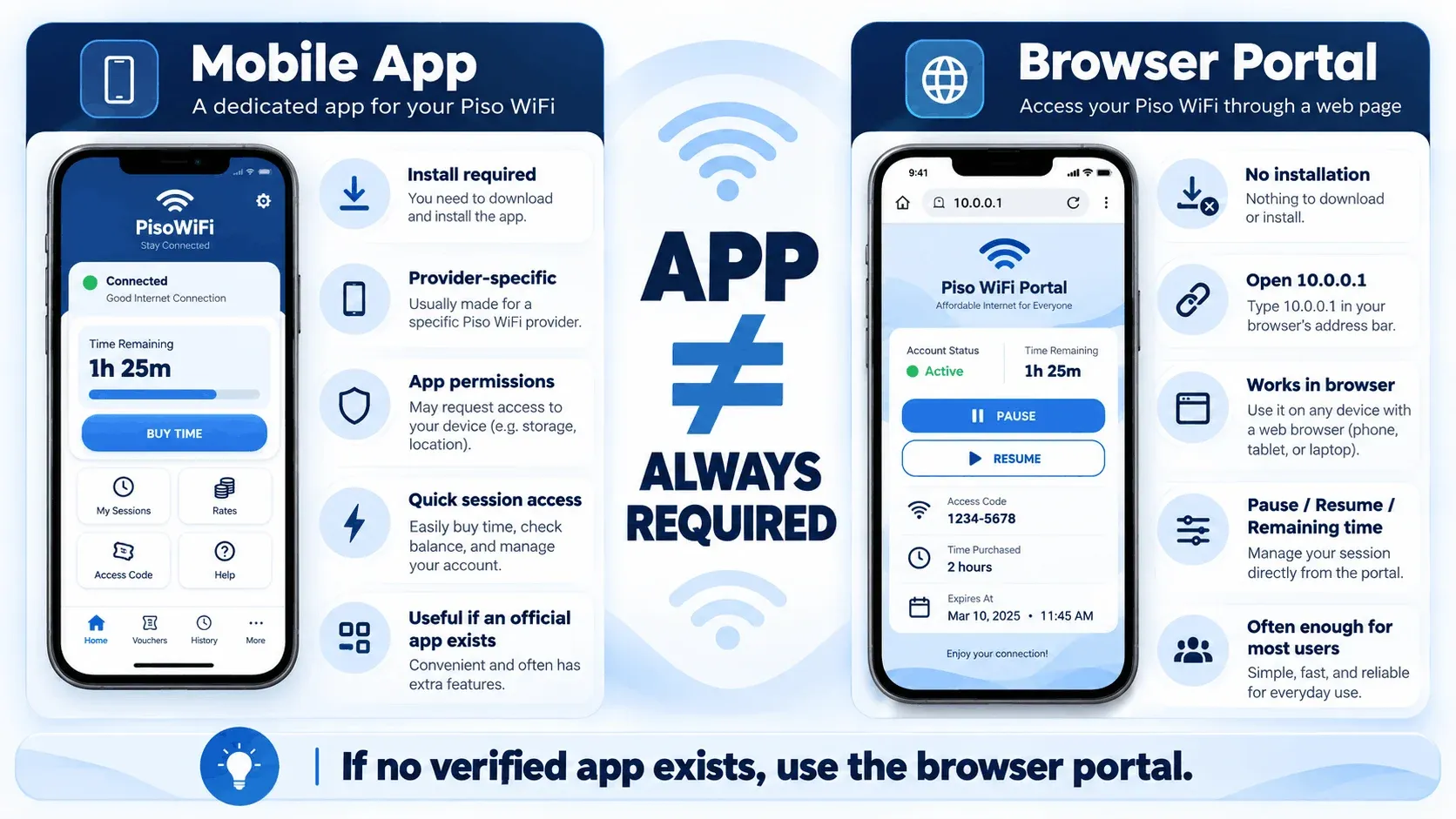
Many Piso WiFi Vendo machines use a browser-based customer portal, so a separate mobile app is not always required. If the vendor has an official app, you should use it for convenient session access. If no verified application exists, the browser portal is often enough.
Piso WiFi Pause Time App Tips
There are some tips to follow that can help you avoid losing paid minutes or having unnecessary app issues.
Frequently Asked Questions
Can You Use Piso WiFi Without Downloading an App?
Yes, if the machine is compatible with the Piso WiFi portal. Connect to the Piso WiFi network and then open 10.0.0.1 in your browser to manage your session.
Does the Piso WiFi App Display Your Remaining Time?
Yes, a supported Piso WiFi application might display your remaining minutes or balance. It can be verified before stopping or continuing your session.
Are Vouchers Compatible with a Piso WiFi App?
Yes, some Piso WiFi apps and portals accept Piso Wifi voucher codes. The number of vouchers, the rates and the validity of the vouchers are dependent on the settings of the machine owner.
Is the Piso WiFi Pause Time App Free?
Yes, it is free if an official app is offered by the vendo provider. Don't download a Piso WiFi pause time app without verifying its source.
Conclusion
When your vendo provider offers it, the Piso WiFi app can help you manage paid internet time. The Piso WiFi 10.0.0.1 pause time app is basically a browser portal to check, pause or resume your session. If the app does not work, ensure that your WiFi, mobile data, VPN, permissions and browser are working properly before reinstalling the app.