
If you get a voucher but don’t know where to enter the code can be frustrating. Sometimes, the code is correct, but the session still does not start because of the wrong network, an expired voucher, or a portal issue. A 10.0.0.1 Piso WiFi Voucher code gives you access to prepaid internet time without inserting coins when voucher access is available.
To use it, connect to the correct Piso WiFi network and open the customer portal. From there, you can enter your code, check your remaining time, and use Pause or Resume. We will guide you on how to activate voucher activation, 10.0.0.1 access, free voucher codes, Pause Time, and common voucher problems.
What Is a Piso WiFi Voucher?
A Piso WiFi voucher is a code that gives you internet time. You enter the code into a supported Piso WiFi portal. The system checks it and adds time to your session. You can then use the internet based on your voucher package.
Each voucher provide a set number of minutes or hours. The machine owner decides the package and its rules. Some networks use 10.0.0.1 as the local portal. Other Piso WiFi systems may use a different address.
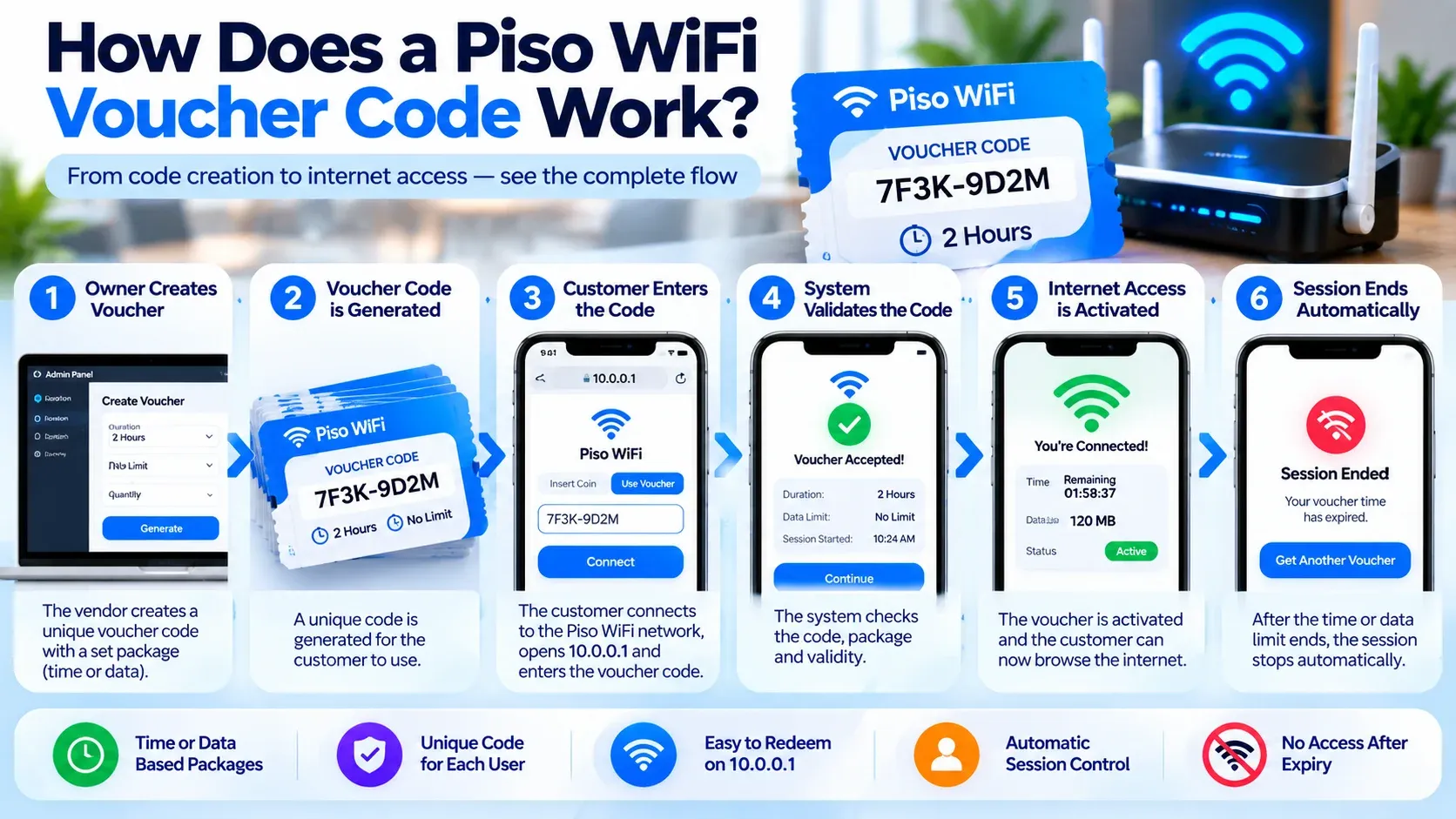
How Does a Piso WiFi Voucher Work?
A Piso WiFi voucher is a code that links to a package of internet. The system verifies the code before granting access.
- 1The owner creates a voucher through the Piso WiFi system.
- 2Each voucher has a code linked to an internet package.
- 3The code can include a set amount of internet time.
- 4The voucher can also have its own validity or expiration rules.
- 5You enter the code through the customer portal.
- 6The system checks whether the voucher is valid.
- 7A valid code starts your internet session.
- 8An expired, used, or incorrect code can be rejected.
What Does a Piso WiFi Voucher Contain?
A voucher typically contains a one-of-a-kind code. This system also holds information associated with that code. These details determine how your internet session operates. A voucher can contain:
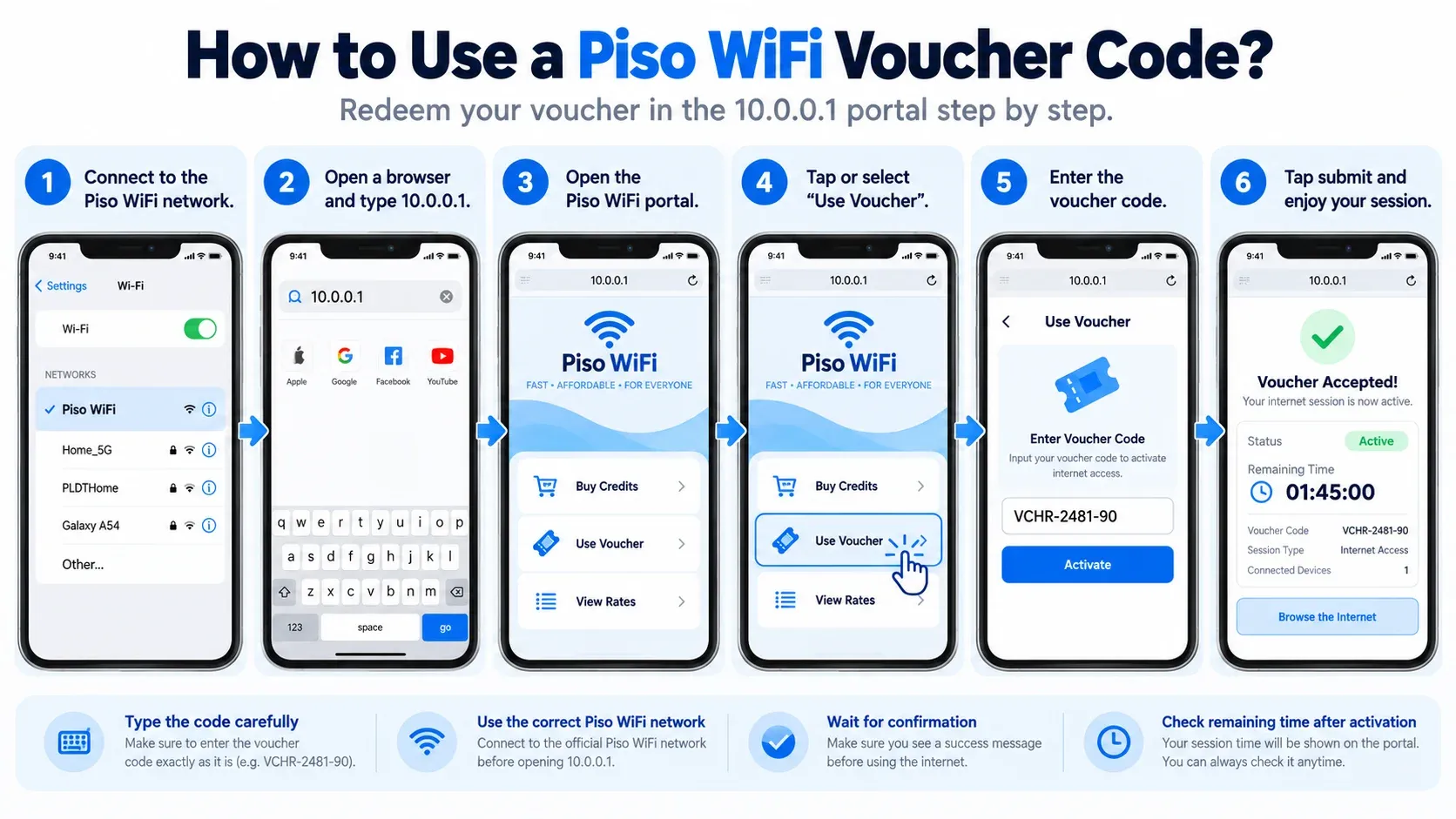
How to Use a Piso WiFi Voucher Code?
Once you have a valid Piso Wifi voucher code, it's easy to use. You should keep connected to the Piso WiFi network and activate it.
- 1Access the WiFi settings on the device. Click on the network that is displayed on or close to the Piso WiFi machine. Do not connect until your phone, tablet, or laptop connects.
- 2You may be automatically taken to the Piso Wifi login page. If not, open Chrome, Safari or another browser. If your machine has this address, type in 10.0.0.1.
- 3Check for a Voucher, Redeem, Enter Code or similar. This name may vary depending on the Piso WiFi system.
- 4Enter the code word for word. Review the letters and numbers before sending it. There are characters that can be easily confused.
- 5Select Redeem, Submit, or Activate. Give the portal a moment to check your voucher, and do not close the page while it is running.
- 6After activation, check the portal. May display “time remaining” or “active session”. This will confirm the voucher was successful.
How to Check Your Remaining Voucher Time?
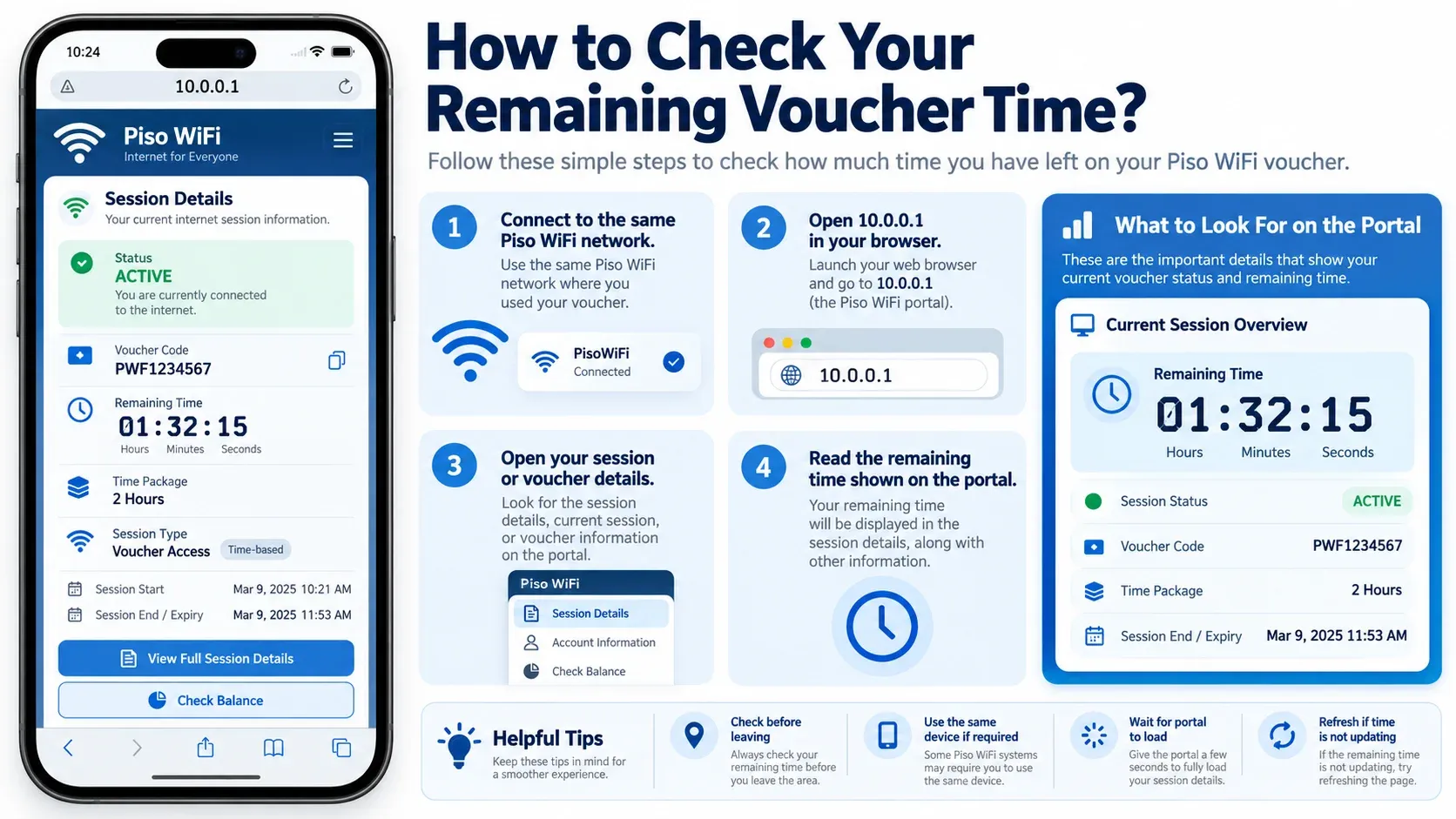
You can check your remaining voucher time through the customer portal. Follow these steps:
- 1Connect to the same Piso WiFi network.
- 2Open the customer portal.
- 3Look for Remaining Time, Session Time, or Balance.
- 4Check how much internet time is left.
- 5Refresh the page if the time does not appear.
- 6Reconnect to the WiFi if the portal does not update.
- 7Open the portal again and check your active session.
Piso WiFi Voucher vs Coin Payment
Both options can give you paid internet access. The main difference is how your session starts. A voucher uses a code, while a coin-based system detects your payment.
Used, Invalid, or Expired Voucher Codes
It depends on how the voucher was created. Many vouchers are made for one-time use. They may stop working after the first successful activation. Do not keep entering a code marked as already used. First, check whether your session is active. If no time appears, ask the owner to check the voucher.
An invalid message means the system did not accept your code. This does not always mean the network has a problem. You may have entered the code incorrectly. It may also be expired, used, or made for another system. Check the code carefully before trying again.
Some vouchers have an expiration date or validity period. The machine owner sets these rules when creating the voucher. An expired Piso WiFi Voucher code may stop working even if you never used it. Check the voucher details before entering the code. Contact the operator if you think your voucher expired too early.
Voucher Activated but Internet Is Not Working
Sometimes the portal accepts your voucher, but the internet still does not work. To solve this:
Your voucher may work even if the timer does not update right away. Refresh the customer portal and wait for the session details to appear. If the time is still missing, reconnect to the same WiFi network. Open the portal again and check your session. Do not use another voucher until you confirm the first one failed.
Piso WiFi Voucher Code Problems and Fixes
There are many reasons that a Piso wifi voucher code may fail. It may be a problem with the code, network or customer portal. Check these things before getting another voucher:
10.0.0.1 Voucher Portal Not Opening
Not all Piso WiFi networks have the address 10.0.0.1. This address needs to be configured on your machine. You also need to be on the right network. If it doesn't open, disable mobile data for a short time. Turn off your VPN and type 10.0.0.1 into your browser's address bar. You can also log back in to WiFi or use another browser.
Piso WiFi Voucher Pause Time
Piso WiFi Pause Time can be supported by a voucher session, provided the owner has turned it on. The Pause button allows you to pause eligible paid time if you are away. Access the customer portal and check for the Pause button. Don't rely on turning the WiFi off to save your minutes. Wait until the portal has confirmed that your session is paused.
How to Resume Your Remaining Voucher Time?
Your remaining voucher time can continue when the system supports Resume. Follow these steps to return to your session:
- 1Connect the same device to the Piso WiFi network.
- 2Open the customer portal in your browser.
- 3Check for your previous session.
- 4Select Resume if the option appears.
- 5Wait for your session to become active.
- 6Check your remaining time before browsing.
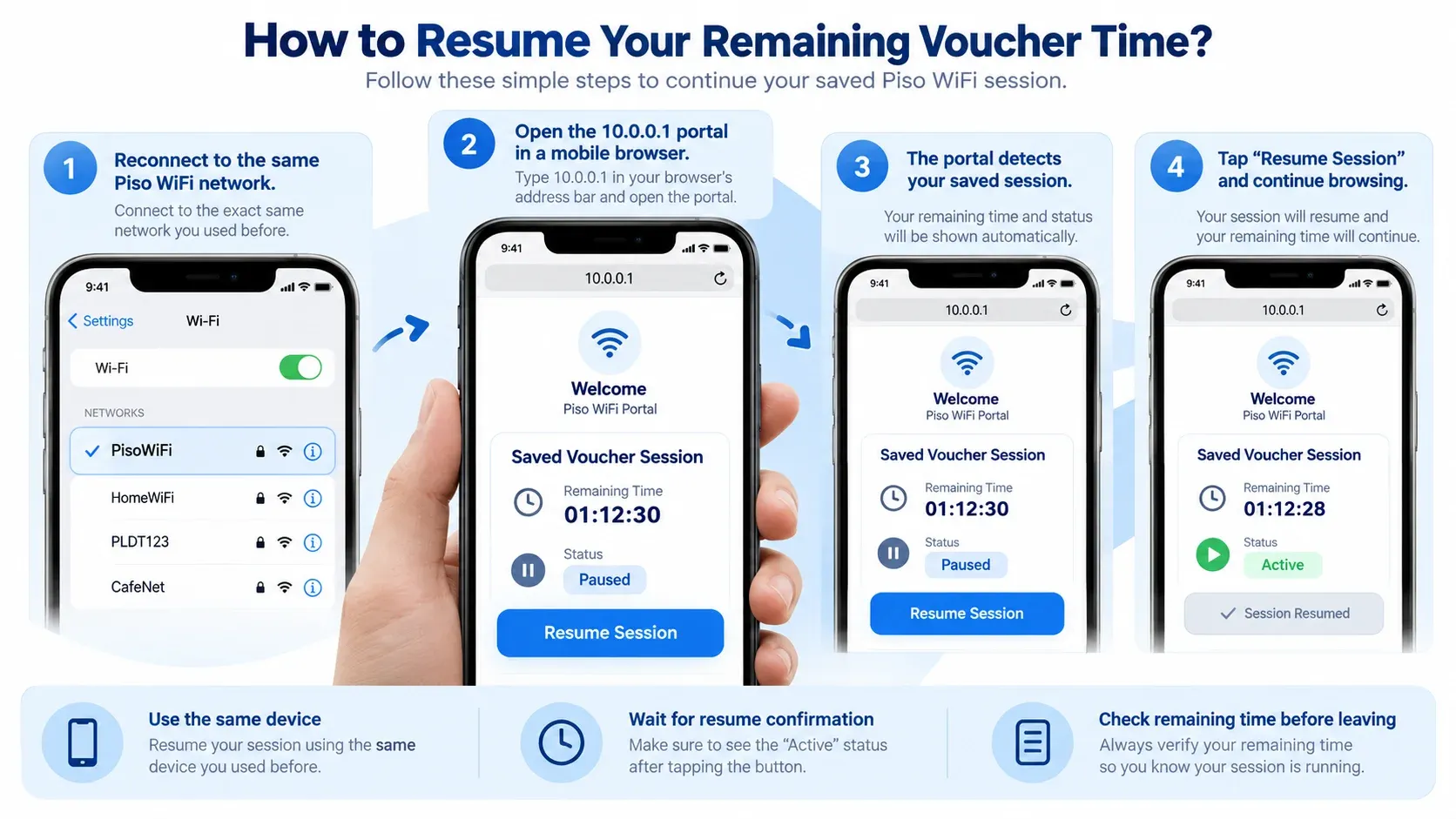
Important: Some Piso WiFi systems require the same device to resume a previous session.
What Does 10.0.0.1 Mean for Voucher Codes?
10.0.0.1 is the private IP address of some local networks. It can be used for the customer portal or other local controls in a Piso WiFi system. This address is not a voucher or a place to get free Internet. A voucher comes with software on the machine. Otherwise, Piso WiFi systems use other portal addresses.
Piso WiFi Voucher Management
Voucher management provides greater control over customer Internet access. It is possible to create packages, set access time, check voucher status, and view active sessions.
Go to the voucher settings in your authorized admin panel. Select the time and package rules. Make sure that the package is in line with what you are offering your customers.
Some dashboards indicate if a code is unused, active, expired, or redeemed. This can be helpful when a customer complains about an issue.
For supported systems, sessions may be shown as having been started with vouchers. This allows the owner to see if the code was successful. It can also indicate if Internet time was recorded.
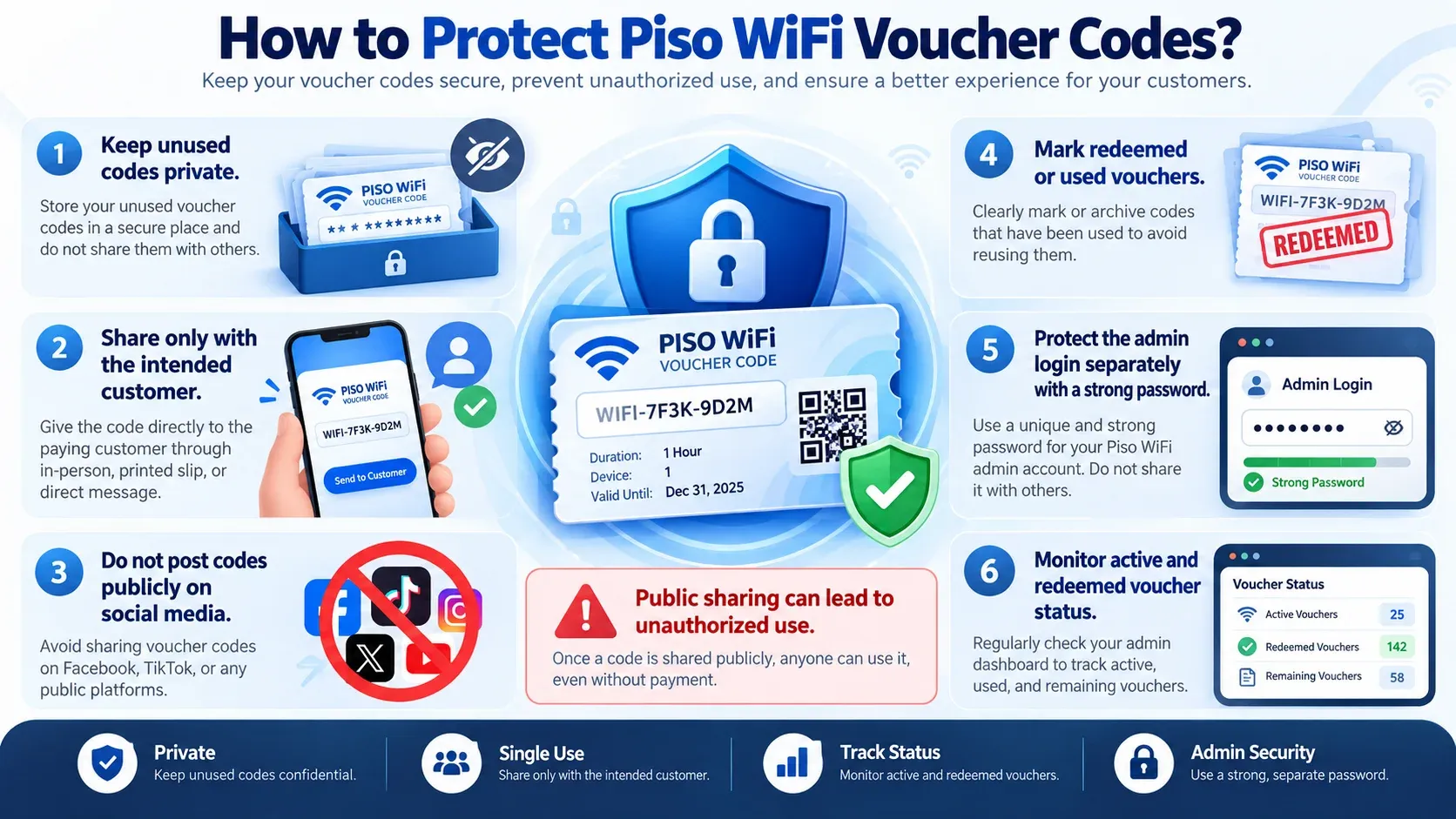
How to Protect Piso WiFi Voucher Codes?
If the Piso WiFi Voucher code is made public, then a valid voucher can be used by another person. Here are some tips for safeguarding your vouchers:
Piso WiFi Voucher Setup
Voucher access requires appropriate network and system configuration. Typically, the following equipment is included:
- 1Make sure you have a working internet connection.
- 2Connect a router or Access Point.
- 3Set up the Piso WiFi customer portal.
- 4Ensure the software supports access to vouchers.
- 5Turn on the voucher setting in the administration settings.
- 6Make vouchers and assign access dates.
- 7Evaluate a voucher before giving it to customers.
- 8Apply settings created with your LPB, AdoPiSoft or Grace Piso WiFi system.
LPB and Piso WiFi Vendo Voucher Support
LPB Piso WiFi
Vouchers are supported by LPB Piso WiFi based on its software and settings. If activated, customers can enter a valid code via the supported portal. Voucher rules vary from LPB machine to LPB machine. See the customer portal for the options available. Check with the owner of the machine whether the voucher field is missing.
Piso WiFi Vendo
Some Piso WiFi Vendo machines can accept more than one payment method. Coins, vouchers or supported digital payments can be found on the same system. A voucher is a code used to unlock prepaid Internet time. The owner will need to enable voucher support first, however. If the machine is not compatible with the code, it will not work.
Piso WiFi Voucher Tips
Using a voucher is easy, but small mistakes can stop it from working. These tips can make it easier to use:
Frequently Asked Questions
Is a 10.0.0.1 Piso WiFi Voucher code free?
It can be free if the owner offers a promotion or reward. The 10.0.0.1 address does not provide free codes. Check with the local operator for available offers.
Can I use a 10.0.0.1 Piso WiFi Voucher code for free in 2026?
Older codes may be expired or already used. They may also belong to another Piso WiFi system. Get a current voucher from the local operator.
Why do Piso WiFi owners use vouchers?
Vouchers give owners another way to sell internet time without using coins. They can create different packages for customers. Some systems also let owners check voucher status.
Do Free Piso WiFi Voucher Codes Online Work?
Random online codes may be expired or already used. They may also belong to another machine. Use vouchers provided by the local operator or an approved source.
Why is my Piso WiFi Voucher invalid?
The code may be incorrect, expired, used, or unsupported. Check each character and try again. Ask the operator to check the Piso WiFi Voucher code if the problem continues.
Can I use the same Voucher on another device?
This depends on the Piso WiFi system. Some sessions may be linked to the device used during activation. So, changing devices can stop you from accessing the same session.
How do I check my Remaining Voucher time?
Open the customer portal while connected to Piso WiFi. Check for your remaining time, balance, or active session details.
Conclusion
A 10.0.0.1 Piso WiFi Voucher code is the best way to activate internet time without using coins. You should connect to the right network, open the portal, and enter your valid voucher code. Keep your code private and check your session after activation. If the voucher fails, check the code, expiration, network, and portal first.