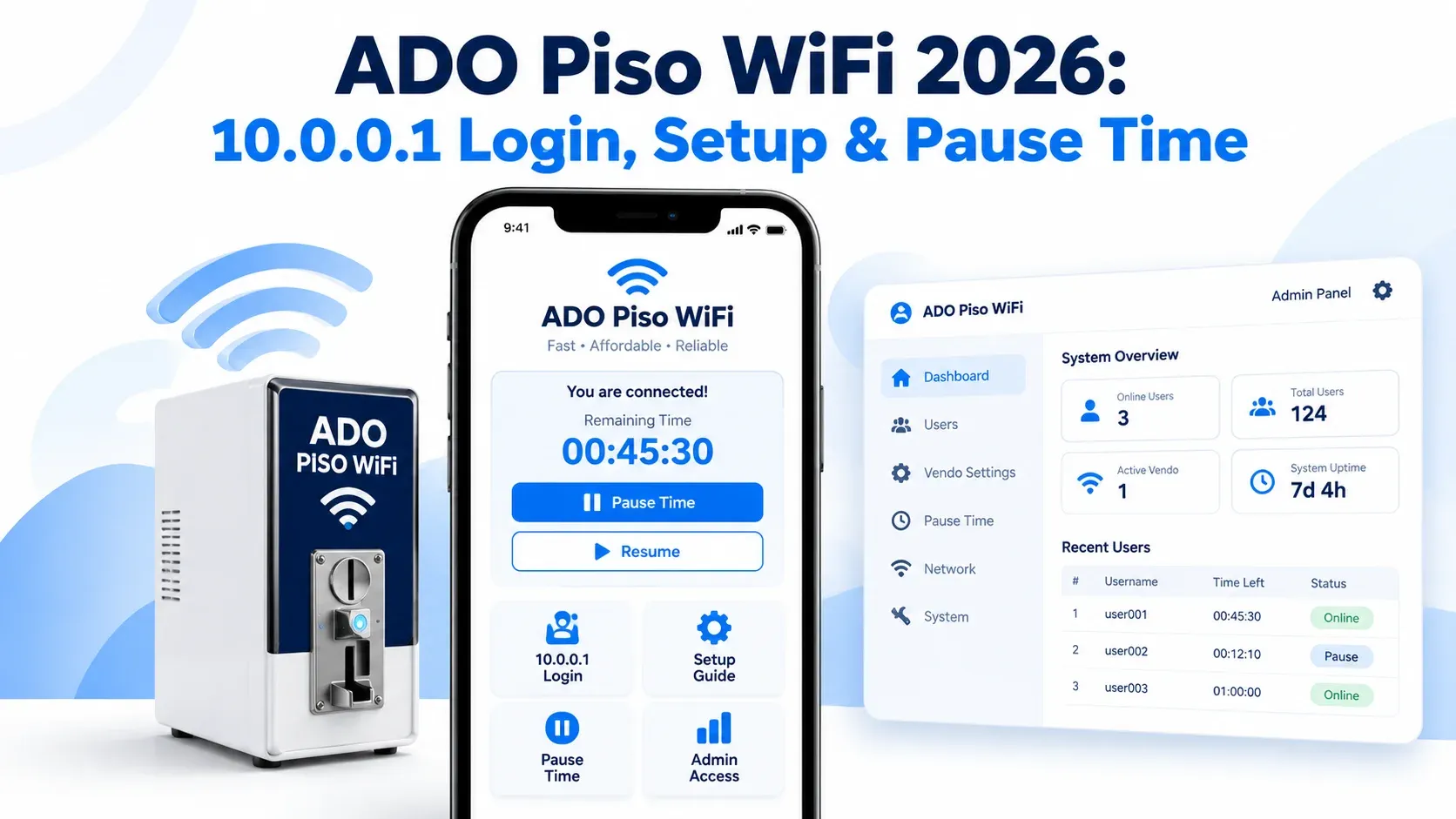
A Piso WiFi machine works best when payments, internet time, and network settings are set up correctly. ADO Piso WiFi provides the owner with control over rates, vouchers, customer sessions and other vendor settings. The local portal also allows customers to view their session and adjust their options.
The 10.0.0.1 address provides access to the customer portal, and the admin area is for owners to manage the machine. Pause Time can assist you in saving time that is not being used when not on the web. We provide you with a complete guide on setup, Piso WiFi login, admin controls, vouchers, rates, Pause Time and other important settings in an easy way.
What Is ADO Piso WiFi?
ADO Piso WiFi is software that is used to manage Piso WiFi Vendo systems. It is also known as AdoPiSoft. It handles customer sessions, payments, vouchers, and other controls. The software can work with hardware used to provide paid internet access.
A complete system normally needs a controller or supported computer, network equipment, a payment device, power, and an internet source. The exact hardware can differ between Vendo builds. For this reason, you should follow the instructions supplied with your specific machine.
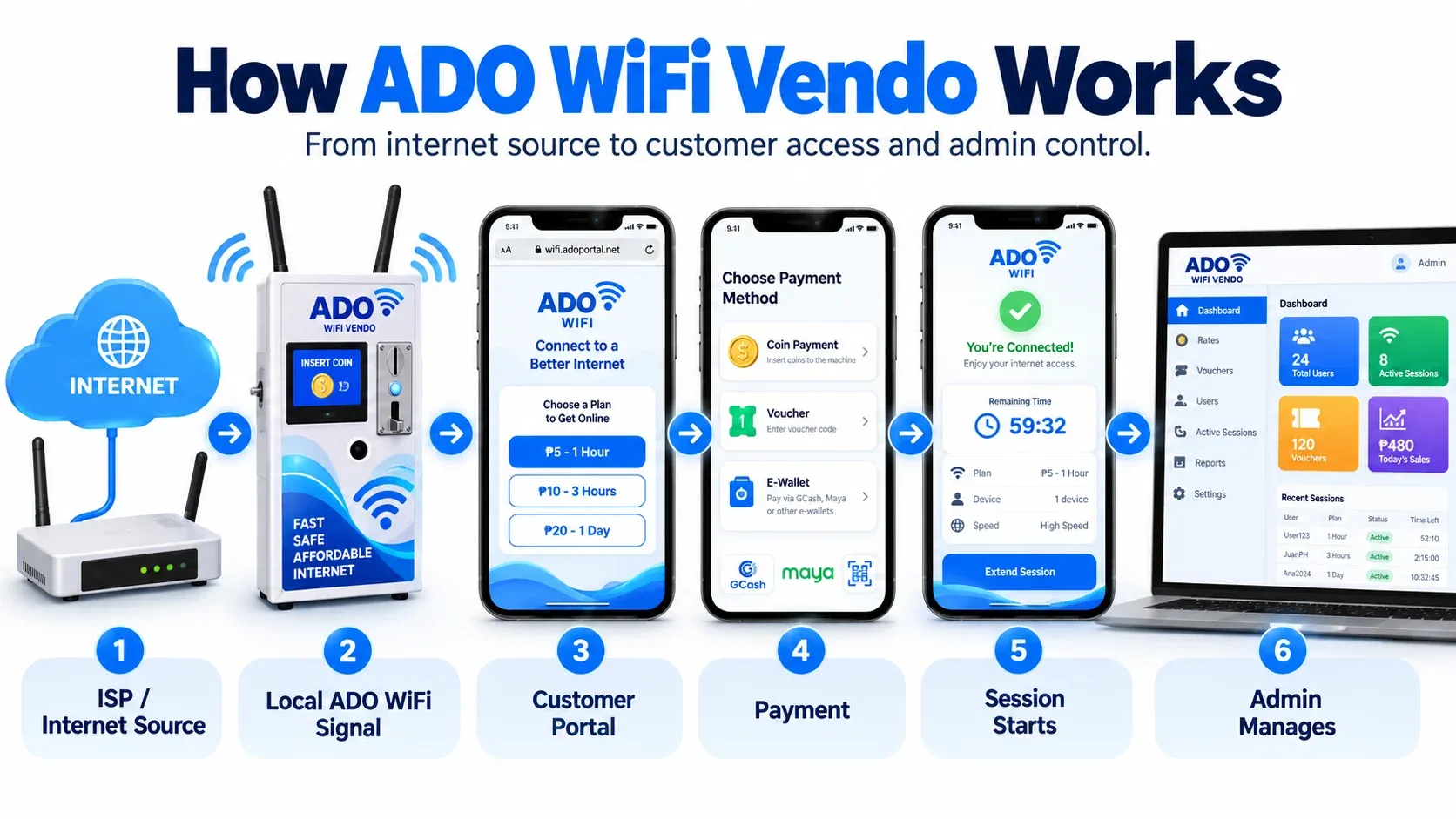
How ADO WiFi Vendo Works
An ADO WiFi Vendo machine gives customers paid internet access through a local WiFi network. The process is easy for both users and the owner.
ADO Piso WiFi Hardware Requirements
Before starting your setup, make sure you have compatible hardware. A complete setup includes:
ADO WiFi Vendo Setup
The ADO WiFi Vendo setup is easier when you complete each step in the right order. Here is a general setup process for Piso WiFi:
- 1Prepare your supported hardware.
- 2Install the required AdoPiSoft software image.
- 3Insert the prepared storage card when required.
- 4Connect the controller to the network equipment.
- 5Connect the internet source.
- 6Install the coin acceptor using the correct wiring.
- 7Connect the required power supplies and turn on the system.
- 8Wait for the machine to complete its startup.
- 9Connect a phone or laptop to the WiFi network.
- 10Open the customer portal.
- 11Enter the admin area and configure your settings.
- 12Test a payment and internet session.
ADO WiFi Vendo IP Address
The ADO WiFi Vendo IP Address used for the local portal is 10.0.0.1 on standard setups. It is a private local address rather than a normal public website. This means you normally need to be connected to the machine's network before it will open.
The base address is commonly used for the customer-facing portal. Owner management uses an admin path provided by the platform or installer. Follow the access details supplied with your own machine rather than assuming every custom build is identical.
ADO Piso WiFi Customer Access
Customer access is easy. A person joins the available WiFi network and then opens the customer portal. The exact payment options shown depend on the machine configuration. A customer can follow these steps:
- 1Open WiFi settings.
- 2Select the WiFi network.
- 3Wait for the device to connect.
- 4Open the customer portal.
- 5Choose the available payment option.
- 6Insert coins or use another supported method.
- 7Wait for the session to activate.
- 8Check the available internet time and start browsing.
ADO Piso WiFi 10.0.0.1 Login
The 10.0.0.1 address opens the local customer portal on supported setups. You normally need to be connected to the machine's WiFi network before this page will open.
- 1Connect your device to the ADO WiFi network.
- 2Open Chrome, Safari, or another browser.
- 3Type 10.0.0.1 directly into the address bar.
- 4Wait for the customer portal to load.
- 5Check your available session options or remaining time.
ADO Piso WiFi Admin
The ADO Piso WiFi Admin area is for the machine owner or an approved admin. It provides more controls than the customer portal. You should not share admin access with customers.
The exact admin URL and credentials can depend on the software version and installer configuration. Use the details provided with your licensed setup. Once you log in for the first time, review your security settings before making the machine available to customers.
ADO Piso WiFi Admin Dashboard
The admin dashboard is where you control the daily operation of your machine. The exact menus can change between software versions. However, the dashboard can provide several useful management options. Depending on your setup, you can:
ADO WiFi Vendo Rates
ADO WiFi Vendo rates control the price of each internet session. Owners can set different options based on time or data.
- 1Open the Rates section in your authorised admin dashboard.
- 2Create a rate and enter the required price, session duration, or data limit.
- 3Save the setting and check the customer portal to make sure it appears correctly.
Piso Wifi Vouchers
Piso Wifi Vouchers allow customers to access WiFi using a code. They can be useful for counter sales, promotions, or situations where coin payment is not practical. Here is a general process:
- 1Open the admin dashboard.
- 2Find the Vouchers section.
- 3Choose the option to create vouchers.
- 4Select the required rate.
- 5Choose the number of codes.
- 6Generate the vouchers.
- 7Save or print them.
- 8Test one code before distribution.
Time and Data-Based Vouchers
A time-based voucher gives access for a selected period. A data-based voucher can limit how much internet data a customer uses. Some configurations allow both controls to work together.
These options can help owners manage different customer needs. A light user can prefer a small package, while another customer may need more time or data. Check the available voucher controls in your software version.
Bandwidth Controls
One customer using a large amount of bandwidth can slow the connection for everyone else. Bandwidth controls can help distribute available speed more fairly. The limits you choose should match the capacity of your main internet connection.
If your ADO setup supports bandwidth controls, open the relevant admin section and review the available limits. Avoid setting values without understanding your ISP speed. Test normal browsing and calls after making changes.
Device and Usage Limits
Some configurations allow you to control the number of devices connected to a session or voucher. This can prevent one paid code from being shared with many devices. It can also help reduce unnecessary network load. Usage limits should match your pricing and customer needs. It must keep the rules clear so users know what they are buying.
ADO WiFi Vendo 10.0.0.1 Pause
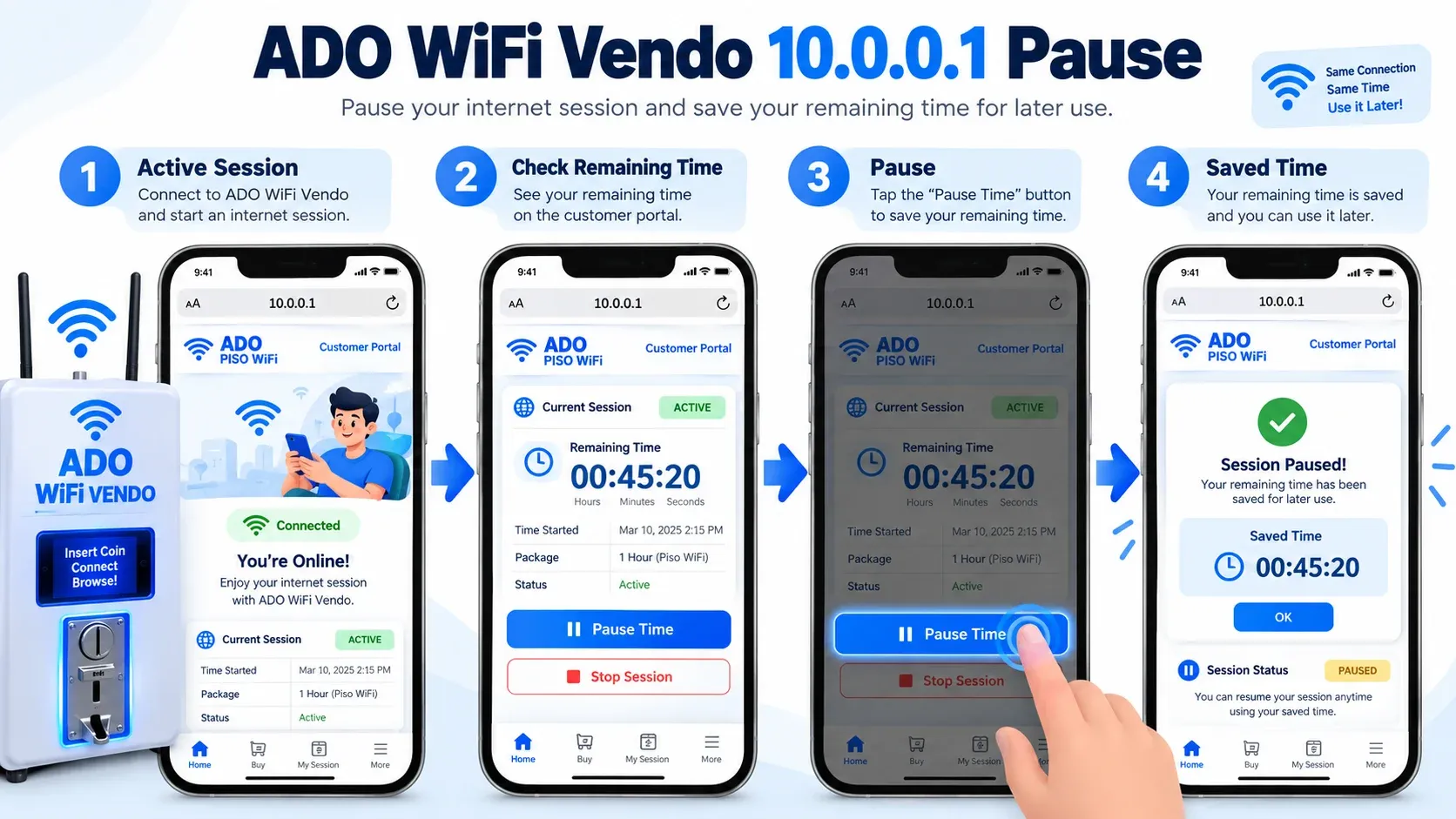
ADO WiFi Vendo 10.0.0.1 Pause helps customers manage unused session time when the feature is enabled. Instead of allowing paid minutes to continue while the user is away, the portal provides a pause control. Pause availability depends on the machine configuration and software version. Customers should confirm that the timer has actually stopped.
The pause feature allows you to stop your internet session for a short time without wasting the remaining minutes. If this option is available on the portal, you can pause your session by following the steps below.
- 1Stay connected to WiFi and open your browser.
- 2Enter 10.0.0.1.
- 3Check your remaining time.
- 4Find the Pause button and tap it once.
- 5Wait for confirmation.
- 6Disconnect after the timer stops.
Important: If no Pause button appears, the owner may not have enabled the feature.
Resume Piso WiFi Pause Time
To resume Piso WiFi Pause Time, reconnect to the same WiFi network when you are ready to browse again. Using the same device can make session recovery easier on some configurations. For this:
- Open the customer portal after reconnecting.
- Find the Resume or Continue option and tap it.
- Check that the timer begins again and your remaining minutes are correct.
- If the session does not return, contact the machine owner.
ADO Piso WiFi Admin Password
A strong admin password helps protect your machine settings from unwanted access. You should change the default or installer-provided password after the setup is complete. Here is how you can do it:
- 1Open the account, profile, or security section in the admin dashboard.
- 2Enter your current password and create a strong new one.
- 3Save the change and sign in again to confirm that the new password works.
Common ADO WiFi Vendo Problems
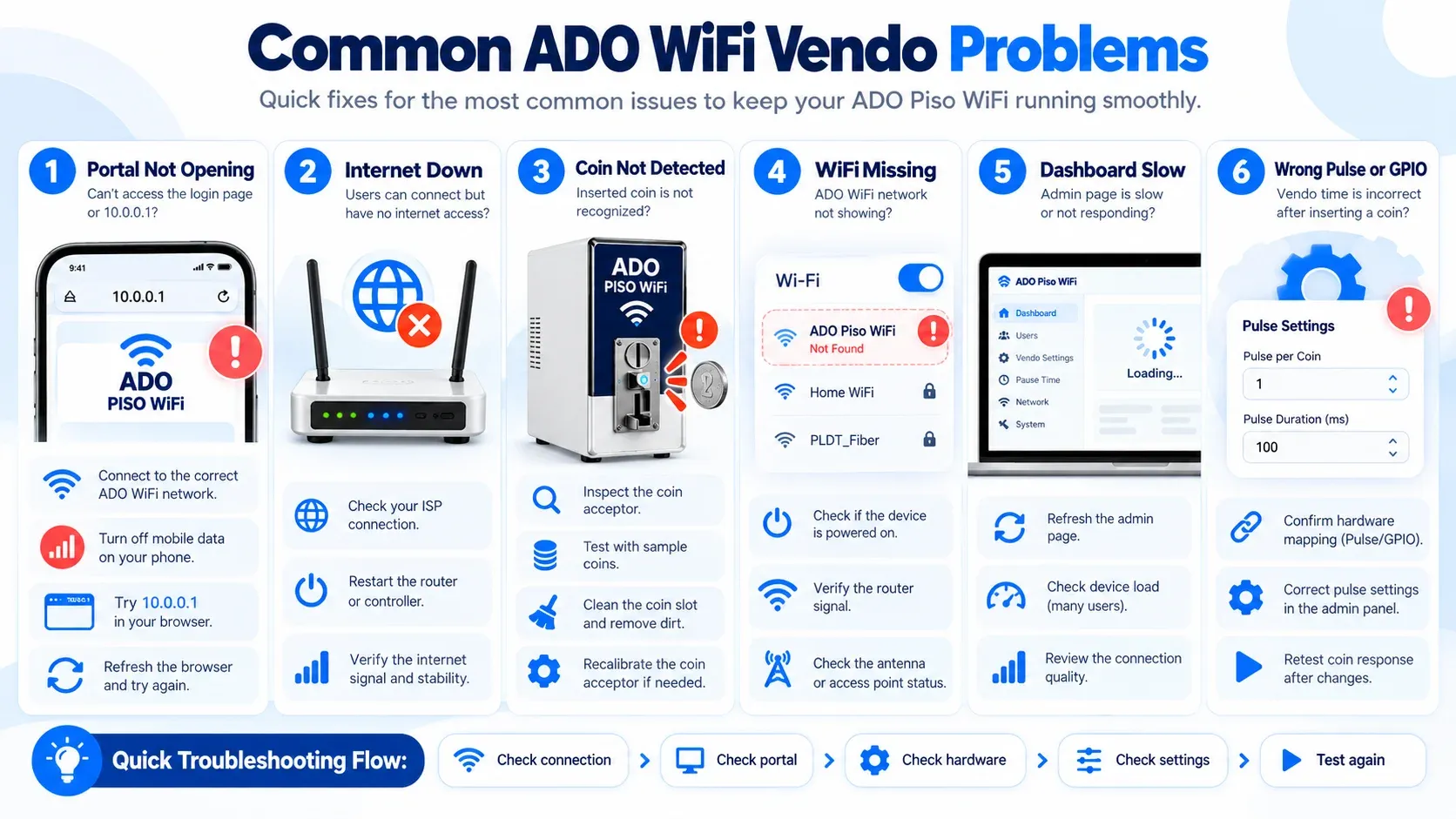
The most common reason for ADO WiFi Vendo problems is a local network problem, payment hardware, or incorrect settings. Here are some common mistakes and errors you may face:
If you don't have a correct WiFi connection, are on mobile data, a VPN is enabled, or the controller is still starting, the local portal will not open. To solve this problem, join the right network and type in 10.0.0.1 in the browser. If it continues to fail, inspect the controller, router, access point and LAN connection.
The wireless network can operate as a standalone network even if the internet connection is down. Before replacing customer devices, the ISP connection, router, WAN cable, modem or ONT should be tested if websites and apps are down for all customers. This will help to rule out a local WiFi problem and help isolate an upstream internet issue.
The coin acceptor does not record payments due to dirt, loose wiring, incorrect GPIO settings, incorrect pulse values or faulty hardware. You should verify the coin slot, power supply, signal wiring, accepted coin denominations and credit after each test coin. If the amount is incorrect, check the pulse settings first.
If the controller is still starting, the WiFi network might not show up. Can also occur if the access point is not powered or the storage card is faulty. Restart WiFi on your phone by checking the controller, power, LAN cables, storage card and access point.
A slow admin dashboard can be caused by low WiFi signals, an overloaded controller, browser problems, and unsupported software files. Connect to the local network, try to get closer to the access point, reopen the dashboard and try a different browser or approved device.
GPIO assignments, payment settings, and other device-specific controls may be impacted by the incorrect hardware type. The chosen board should be compatible with the actual board in the machine and the software image. Check the controller model before making any change to the controller setting that relates to hardware.
If the GPIO or pulse values are incorrect, the payment system will not be able to record the coins correctly or may add the wrong credit. If coins are accepted when there is no balance, different coins return the same value, or the user has power but no coins are recorded, these settings should be checked.
The time left in a session will not necessarily be saved when the WiFi connection drops. The owner of the machine can set the automatic pause. Users should use the available Pause option and check that the timer has stopped before leaving the connection. This will help to avoid wasting minutes.
A combination of settings can make an easy problem more difficult to track. Rates, vouchers, bandwidth, network settings, GPIO pins and session rules should be changed one at a time and tested after each change. This helps to determine the cause and to get back to the original setting, if necessary.
ADO Piso WiFi Safety Tips
A safe setup ensures that the machine, payment hardware and admin controls are protected. To keep your child safe when using the Internet at ADO Piso, follow these safety tips:
- Admins should not share logins.
- Use official software files.
- Installers are asked to use the proper wiring diagram.
- The machine should be kept away from rain and water.
- All cables should be kept taut and connected.
- When possible, owners should make backups of important settings.
- Changes should be tested by the admin before being used by customers.
- Payment hardware must remain clean.
- Owners should restrict access to admin to trusted users.
- If necessary, the supplier should deal with hardware-specific problems.
Frequently Asked Questions
Can ADO WiFi Vendo Sessions Continue After a Reboot?
Yes, AdoPiSoft can continue active time or data sessions after the machine restarts when this setting is enabled. Users do not need to start the session again manually.
What Is the ADO Piso WiFi IP Address?
10.0.0.1 is commonly used as the local portal address on standard ADO setups. Your machine must normally be connected to the local network.
Can I Back Up ADO WiFi Vendor Settings?
Yes, AdoPiSoft supports backups for sessions, vouchers, rates, network settings, captive portal data, and other system settings. A backup is useful before replacing or reflashing the SD card or changing the software version.
What Is ADO Piso WiFi Admin?
It is the management area for authorized machine owners. It can provide controls for rates, vouchers, users, and network settings.
Can an Owner Control Internet Speed?
Some setups provide bandwidth controls. These can help manage how much speed individual users or rate plans receive.
Does Disconnecting Automatically Pause ADO WiFi Vendo?
No, disconnecting your phone does not always pause the session. You should use the Pause option to save your remaining time.
Conclusion
With ADO Piso WiFi, it is easier to manage paid internet access. Owners can manage sessions, rates, vouchers and much more from a single location. The right hardware, software and network configuration are all necessary for a good setup. Admin access, Pause Time and periodic checks can help the system function more effectively.