Sometimes, a Piso WiFi machine fails to work as intended. The administration page can freeze, the session may become stuck, or you may lose your administrator password. In these cases, a Piso WiFi reset can help you restore access or solve a temporary system problem.
However, every reset does not mean wiping the entire machine. Only a restart may fix a temporary issue, while a password change can protect your admin account without deleting other settings. We’ll explain how to reset Piso WiFi, recover admin access, reset LPB and ADO systems, manage Vendo hardware, and safely configure the machine again.
What Does a Piso WiFi Reset Mean?
A Piso WiFi reset means restarting, recovering, or restoring part of your WiFi vending system. The correct method depends on the problem you are trying to solve. You should identify the issue before pressing a physical reset button. This can help you avoid unnecessary changes to the system.
For example, if the portal is frozen, it may require a restart. The known admin password can be changed from the settings page. A full factory reset is more serious, as it can reset the machine to its original settings and delete any customised settings. It is important to make a backup of important settings before doing a full reset.
Restart, Password Reset, or Factory Reset: Key Difference
Many owners use the word "reset" for different actions. Choosing the wrong method can create extra work. You should understand these three options before changing your machine.
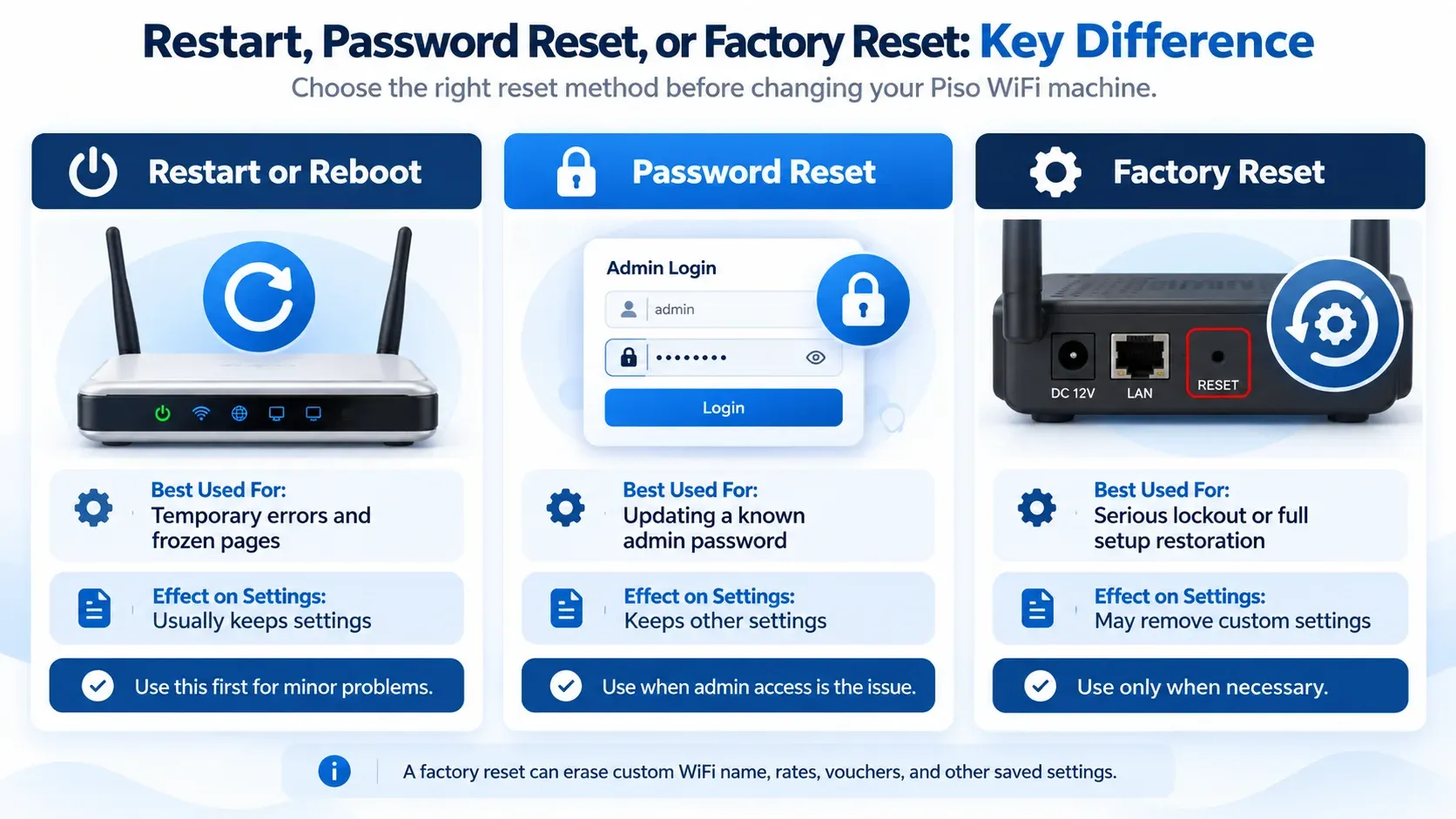
| Reset Type | Best Used For | Effect on Settings |
|---|---|---|
| Restart or Reboot | Temporary errors and frozen pages | Usually keeps settings |
| Password Change | Updating a known admin password | Keeps other settings |
| Factory Reset | Serious lockout or full setup restoration | May remove custom settings |
When to Reset a Piso WiFi Machine?
Resetting is helpful if your machine has a problem that cannot be resolved by the usual troubleshooting. Frequent resets can create more configuration work. You may consider a reset when:
What Should You Check Before Resetting?
Avoid hitting the Piso Wifi reset button immediately if something stops working. The issue could be with your phone, browser, internet service provider or power supply. There are some simple steps you can take to avoid a factory reset.
First, restart the affected device and test to see if the primary internet connection is functioning. Make sure that you are on the appropriate Piso WiFi network. If only the customer portal is impacted, reopen the portal first, and then set the machine settings.
What Does a Factory Reset Erase?
The factory reset is not a normal restart. It can delete customised data from the machine, depending on the platform and firmware. That's why it's important to get ready before you begin. A full Piso Wifi reset affects:
Back Up Important Settings Before You Start
Many settings in your Piso WiFi system can be removed by a factory reset. Record the information that you might need to refer to later before resetting the machine.
How to Reset Piso WiFi?
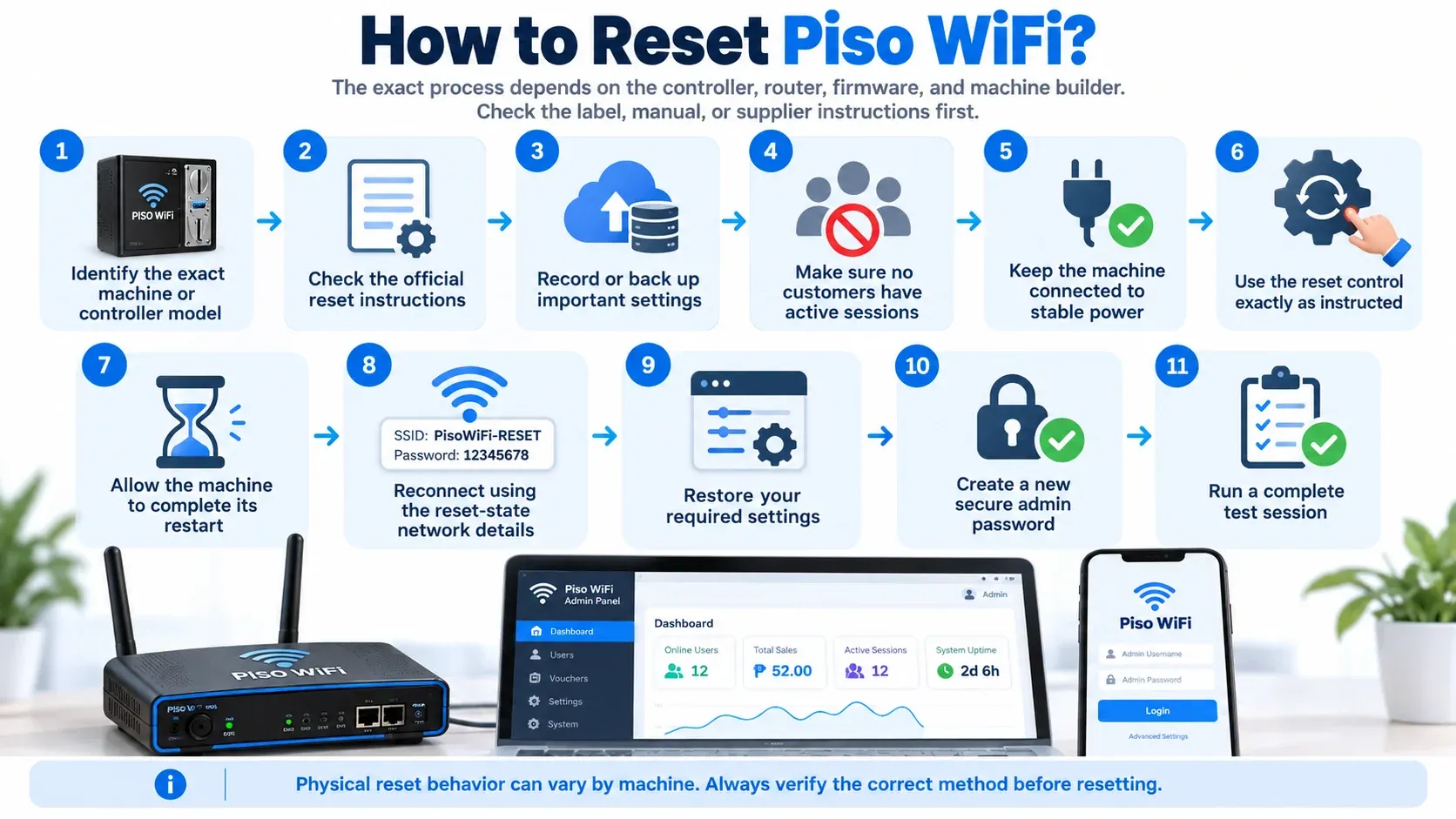
The exact process depends on the controller, router, firmware, and machine builder. A physical button that performs a factory reset on one unit may work differently on another. For this reason, check the machine label, manual, or supplier instructions first.
For an authorised owner, the general process is:
- 1Identify the exact machine or controller model.
- 2Check its official reset instructions.
- 3Record or back up important settings.
- 4Make sure customers are not using active sessions.
- 5Keep the machine connected to stable power.
- 6Use the reset control exactly as described for that model.
- 7Allow the machine to complete its restart.
- 8Reconnect using the network details provided for the reset state.
- 9Restore your required settings.
- 10Create a new secure admin password.
- 11Run a complete test session.
How to Restart Piso WiFi Without Deleting Settings
A restart can fix temporary software problems without deleting your settings. You must try this option before performing a full factory Piso WiFi reset.
Open the Admin Panel
Log in to your Piso WiFi admin panel. Search for the Restart or Reboot option.
Restart the System
Select the normal restart option if available. Wait for the system to shut down and restart.
Let the Machine Boot
Give the machine enough time to start completely. Do not repeatedly disconnect the power during startup.
Check the Connection
Connect your device to the Piso WiFi network. Make sure the customer portal and internet connection work.
Test Important Features
Test the payment system and other active features. If everything works normally, a factory reset is not needed.
10.0.0.1 Piso WiFi Password Reset
The 10.0.0.1 Piso WiFi Password reset refers to recovering or changing administrator access on a system that uses 10.0.0.1 as its local portal address. The customer portal and admin area are not always the same page. Their layout also varies by platform.
If you still know your current password, the safest option is to change it from inside the authorised admin account. This avoids removing pricing, vouchers, and other machine settings.
Change a Known Admin Password
If you can still access the administrator dashboard, follow the account controls provided by your system:
- 1Connect to the authorised management network.
- 2Open the admin page used by your machine.
- 3Sign in with your current credentials.
- 4Open Account, Profile, Security, or a similar section.
- 5Select the password-change option.
- 6Enter your current password when requested.
- 7Create a strong new password.
- 8Save the change and log out.
- 9Sign in again to test the new password.
How to Reset Piso WiFi Admin Password If You Forgot It?
If you forget the admin password, use the official recovery options first. This can help you regain access without losing your machine settings.
- 1Check your setup documents or installer records for the admin login details.
- 2Then check your password manager or saved browser passwords.
- 3Check the recovery email linked to your management account.
- 4Use the official Forgot Password or account recovery option if available.
- 5Contact the installer or supplier if you still cannot access the admin panel.
- 6Use a factory reset only if your machine guide recommends it.
- 7After recovering access, create and set a strong WiFi password using a WiFi password generator.
How to Reset LPB Piso WiFi?
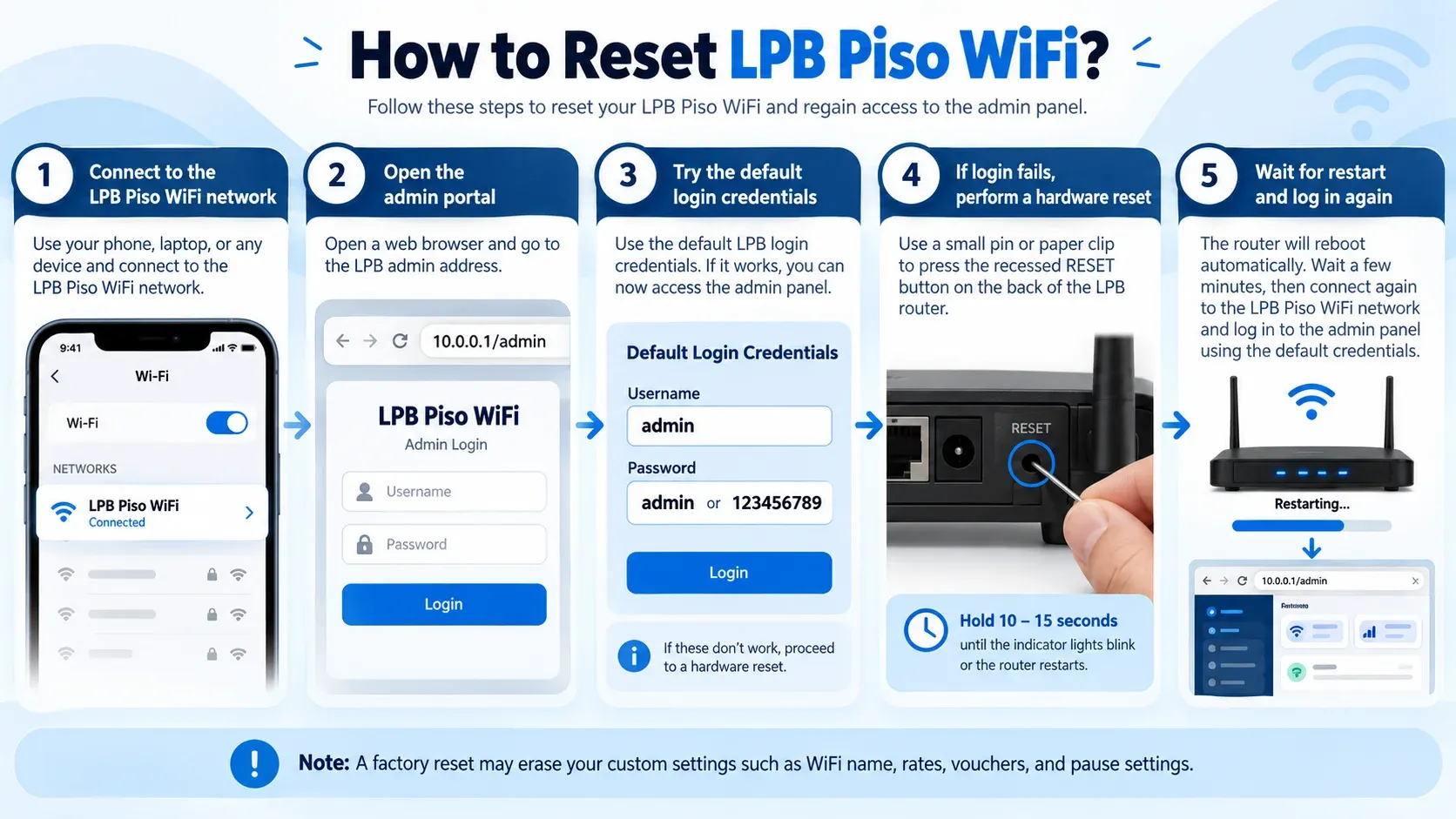
The LPB Piso WiFi reset process varies by LPB hardware and firmware. Check your machine setup before using any reset option.
- 1Start with a normal restart for temporary system problems.
- 2Wait for the machine to boot completely.
- 3Log in to the LPB admin panel if you still have access.
- 4Change your admin password from the account or security settings if needed.
- 5Save the new settings before leaving the admin panel.
- 6Test the portal and internet connection after the restart.
- 7Use a factory reset only when other recovery options do not work.
- 8Back up important settings before a full reset when possible.
What to Check After an LPB Reset?
After resetting an LPB unit, do not immediately reopen it to customers. First, make sure the machine has fully started up. Then verify that the WiFi network and administrator controls are working. After that, check the following settings:
Why LPB Login Still Not Working After Reset?
A failed login does not always mean the reset failed. Your browser may have stored an old page, the machine may still be starting, or your unit may use installer-specific firmware. Avoid repeating a factory reset immediately.
Reconnect to the correct network and reload the official admin page for your machine. Check the documentation or label supplied with the unit for the correct post-reset access details. If those details do not work, contact the supplier instead of trying random credentials.
How to Reset ADO Piso WiFi?
The ADO Piso Wifi reset method depends on your AdoPiSoft setup and Vendo hardware. Check the available recovery options before using a factory reset.
- 1Start with a normal restart for temporary problems.
- 2Sign in to the ADO Piso WiFi admin panel if you still have access.
- 3Open the account or security settings.
- 4Change the administrator password if needed.
- 5Save the new password and settings.
- 6Log out and test the new password.
- 7Check available account or remote recovery options if you cannot sign in.
- 8Use a physical factory reset only when other recovery methods do not work.
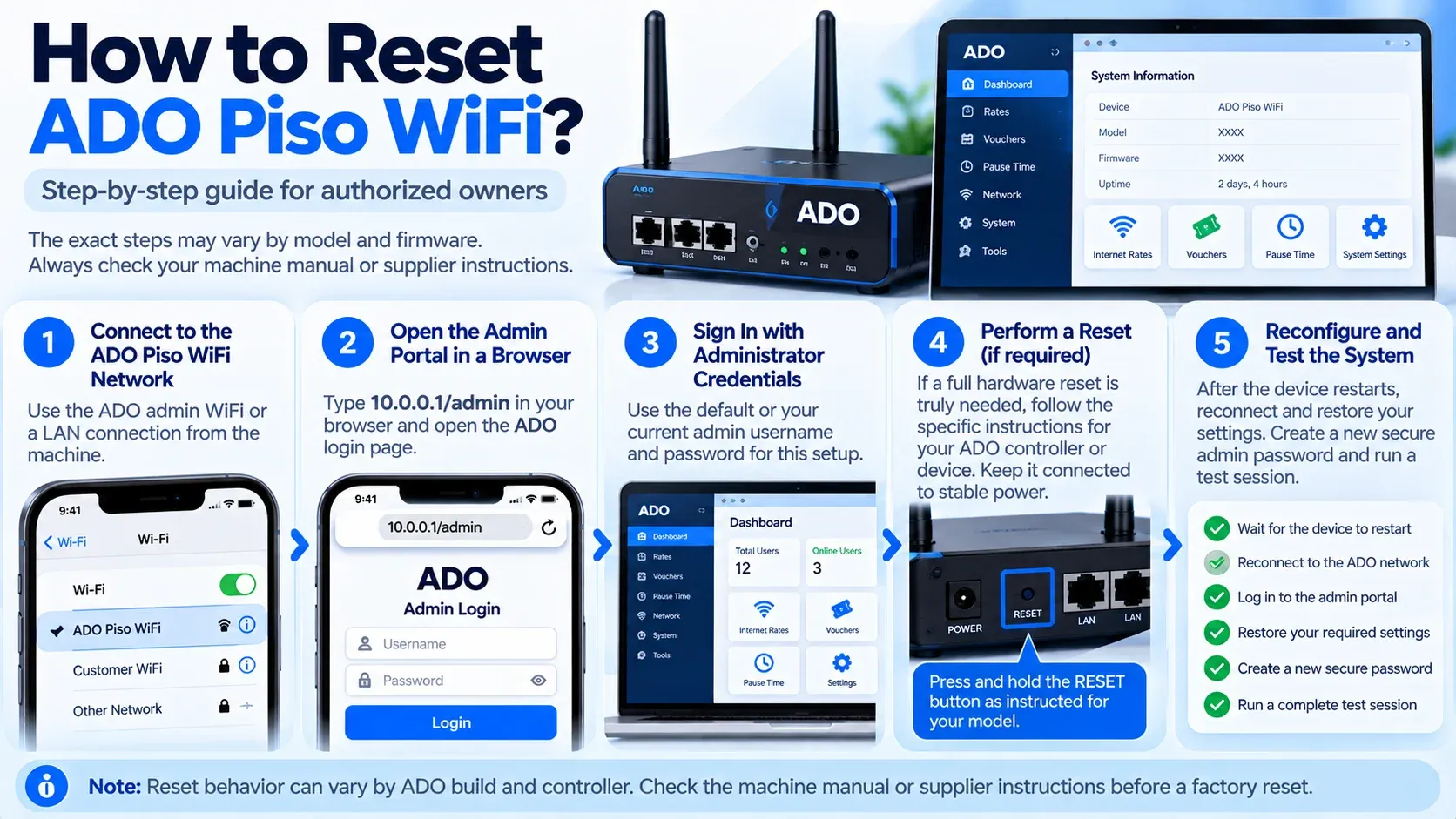
Recovering ADO Admin Access
If your ADO setup is linked to an official remote-management account, check whether account recovery is available. Use only the recovery method connected to your own registered account. Follow the verification instructions provided by the platform.
If online recovery is not available, check the machine documentation or contact the supplier. Physical ADO builds can differ because the hardware may be assembled by different sellers. The Piso Wifi reset button and recovery process may therefore vary.
What to Configure Again After an ADO Reset
A full reset may require you to check your local settings again. Do not assume that every previous feature is still active. Open the authorised admin dashboard and review your configuration.
Pay attention to customer rates, vouchers, network settings, bandwidth limits, and Pause or Resume controls. Also check any remote-management connection you previously used. Finish by running a test payment and customer session.
How to Reset a Piso WiFi Vendo?
There are multiple parts to a Piso WiFi Vendo, so you need to determine the issue first before resetting it. Here are the steps to follow for a Piso WiFi reset:
- 1Determine which section of the Vendo machine is causing the issue.
- 2If the WiFi system doesn't respond, restart the controller.
- 3Check connection issues with the router or access point.
- 4If you are not getting any payments recorded, check the coin acceptor.
- 5Inspect the power supply and power cords.
- 6Adjust the coin acceptor if it is not accepting valid coins.
- 7Restart the system and test the customer portal.
- 8Only use a full reset when there is no way to solve the issue without a full reset.
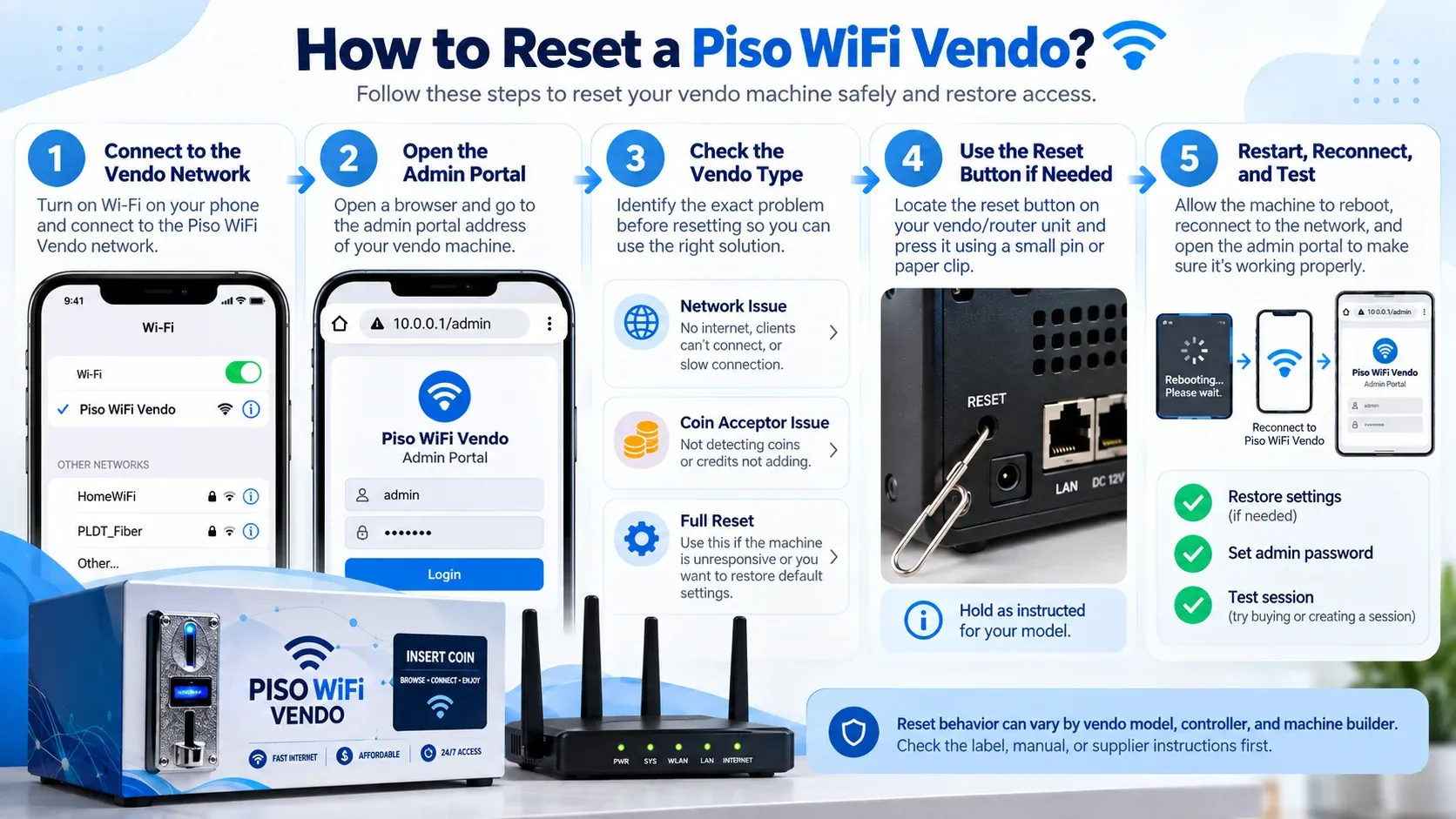
Network Reset vs Coin Acceptor Reset
The controller handles network functions and session functions. The coin acceptor receives coins and notifies the controller with the coin information. These elements can contain different settings.
If the WiFi is functioning but the coins are not accepted, check the coin acceptor, not the network. Inspect for dirt, jammed coins, loose connections, or calibration issues. If it is necessary to recalibrate the coin acceptor, follow the instructions of the manufacturer of the coin acceptor.
Precautions Before a Piso WiFi Factory Reset
There are a few precautions to take before resetting a Piso WiFi. You can avoid big issues with a little preparation. You must consider these precautions:
What to Do After a Piso WiFi Factory Reset
Completing the Piso Wifi reset is only half part of the process. The machine should also be set up and checked prior to reuse by the customers. After the Piso WiFi Factory Reset, the following steps are recommended:
- 1Re-establish authorised admin access.
- 2Create a strong admin password.
- 3Set up customer WiFi SSID.
- 4Check network security.
- 5Fill in the correct rates for payments.
- 6Assign the time given for each payment.
- 7Restore bandwidth limits.
- 8Set up vouchers as necessary.
- 9If necessary, allow for pauses and resumes.
- 10Check the coin box.
- 11Confirm internet access.
- 12Run a complete customer test.
Common Piso WiFi Reset Problems and Fixes
A Piso WiFi reset may not fix all issues right away. Before another reset, do some basic troubleshooting to find the actual cause.
Reset Button Not Working
If the reset button is not responding, it is likely that the reset method is incorrect. Its response may be impaired by power or hardware failures.
Admin Page Not Opening
The system may be in the middle of starting up. If you can reconnect to the right wireless network, you can regain administrator privileges.
Admin Password Not Working
A complete reset may have changed your password, so it might not work. In this case, you should follow the manufacturer's recovery instructions.
WiFi Name Changed
The network name can be restored by a factory reset. The preferred WiFi name can be reconfigured using authorised settings.
Customers Cannot Connect
If a customer cannot access the network, session settings are incorrect. The internet source, portal and rate settings might need attention.
Pause Time Missing
A factory reset will restore optional features to their default setting. If the system supports it, Pause Time can be re-enabled.
Vouchers Not Working
Voucher information stored may be impacted when resetting the factory. If the data was deleted, new voucher codes may be needed.
Coin Acceptor Not Working
The coin acceptor may malfunction for a number of reasons: power, wiring, jamming or calibration. A complete reset of the system is not always necessary for this hardware issue.
Frequently Asked Questions
Does Resetting Piso WiFi Fix Coin Problems?
No, the problems with coin issues can be from dirt, loose cables, or poor calibration. Test the coin acceptor before resetting.
Can You Reset Only the Piso WiFi Admin Password?
Yes, as long as you still have admin privileges. Change the password from the account settings or security settings. Other settings are usually not modified.
Does Resetting cure a stuck Coin Acceptor?
The coin acceptor can be a different device than the WiFi controller. Inspect coin hardware and calibration individually.
Should I Reset Piso WiFi for a Slow Connection?
The coin acceptor may be separate from the WiFi controller. You should check the coin hardware and calibration separately.
When Should I Call a Technician?
If normal recovery is not successful or there is any doubt that the hardware was damaged, call a technician. It is not a good way to solve a problem by resetting the component repeatedly.
Conclusion
A Piso WiFi reset is the best solution to Piso Wifi login, connection, and configuration issues. You must always save important settings and use the reset procedure that is supported by your LPB, ADO or Vendo system. Once the reset is done, test the admin panel, customer portal, payments and internet connection to ensure everything is working correctly.